Interaction design and information architecture
Mehmet Göktürk · Gebze Technical University
Organization, navigation, choices, data entry and recovery.
Interaction styles and representations
Interaction design and information architecture
An interface gives people ways to express intentions and judge what happened. Information architecture determines how content and functions relate. Interaction design determines how people move through that structure, change things and recover when an action goes wrong. These decisions meet in concrete details: a category label, a visible selection, a field format, a progress message or an Undo action.
Use the evidence and task models from Lecture 3 to identify what needs to remain visible, which choices belong together and where interruptions are likely. In this lecture, compare alternatives through different examples. A suitable design depends on the task, the person’s knowledge, the consequences of error and the environment of use.
Choosing an interaction style
An interaction style allocates work between the user and the system. A command asks the user to express an operation in a language the system accepts. A menu supplies alternatives for recognition. A form supplies a structure for entering or inspecting related values. Direct manipulation makes objects and changes available through an ongoing representation.
These styles frequently coexist. A document editor can support dragging a margin, typing an exact margin value and selecting a preset. The styles solve different parts of the same problem. The relevant comparison is the work required to identify a target, specify an action, judge the result and reverse a mistake.
| Style | Strength | Design cost |
|---|---|---|
| Command | Express repeated operations | Syntax and target knowledge |
| Menu | Recognize alternatives | Grouping and search effort |
| Form | Inspect related values | Space and entry organization |
| Direct manipulation | See incremental changes | Precision and hidden actions |
Direct manipulation
Moving a paragraph by dragging it exposes a relationship between the object, the action and the result. The user can inspect the destination instead of translating it into a line number. A useful direct-manipulation interface maintains the object’s identity during the operation and makes the prospective outcome understandable.
A graphical surface alone does not provide these properties. Dragging an item into an unexplained area can still leave the outcome uncertain. Conversely, a numeric field can complement a drag handle when exact placement matters. Reversibility is especially valuable during exploration, but an interface must explain what Undo will actually restore.
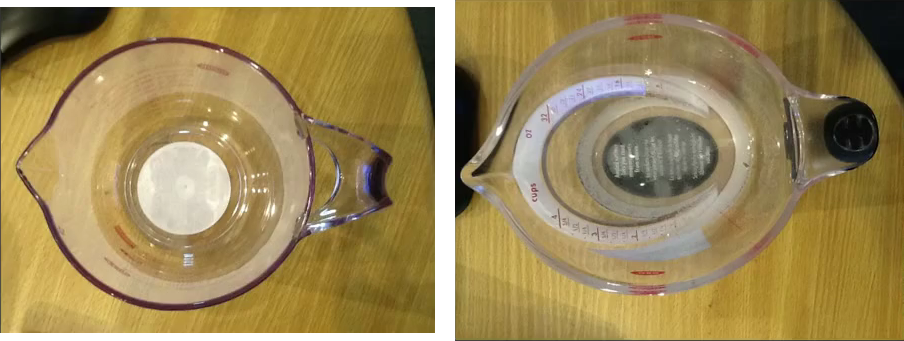
The measuring-cup comparison illustrates how a representation can reduce the effort of inspecting a result. A side scale asks the person to change viewing position while pouring. An angled scale makes the quantity visible from above. The design brings feedback into the activity itself. In a software interface, the analogous question is whether the result remains visible where the person is acting.
Visible relationships in a spreadsheet
Consider a materials estimate with quantity 12, unit cost 8 and total 96. Changing quantity to 15 produces 120. The visible grid supports comparison: the user can inspect which input changed and where its consequences appear. The formula explains a dependency that the displayed total alone cannot reveal.
The designer must decide how a person discovers and inspects that dependency. Highlighting referenced cells, revealing the formula and distinguishing input cells from derived values can make the relationship clearer. A system that silently overwrites a calculated total with a typed value may preserve a neat appearance while destroying the model behind it.
| Quantity | Unit cost | Total |
|---|---|---|
| 12 | 8 | 96 |
| 15 | 8 | 120 |
| Input | Input | Quantity × unit cost |
Whole forms and conversational entry
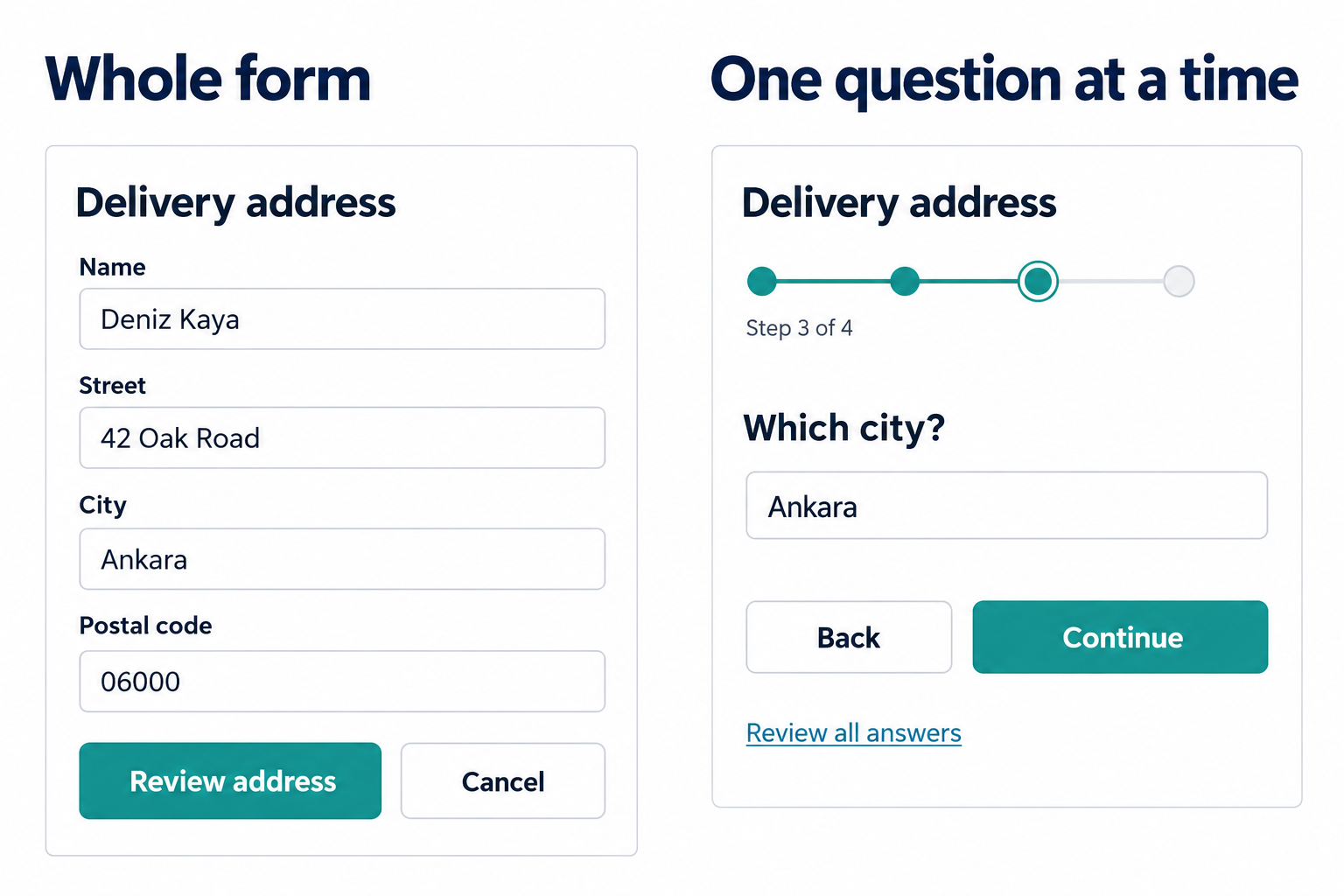
Suppose an employee copies an address from a paper record. A form that groups related fields and follows a compatible order can reduce the need to switch attention between different locations. A guided conversation can instead help when the next question depends strongly on the previous answer.
Neither arrangement eliminates the need for review. A one-question-at-a-time flow should provide a way to inspect and revise earlier answers without restarting. A whole form should not expose irrelevant fields merely to avoid branching. Choose based on dependency, reference needs, frequency of use and the consequences of losing the surrounding context.
Follow the address example. The city is Ankara and the postal code is 06000. On the whole form, both values remain visible while you compare them with the source document. At step 3 of the guided sequence, only the city appears. To check whether the postal code was copied correctly, you need a review route. Back revisits an earlier step; Review all answers provides an overview. Neither should clear already entered values.
Now change the task: an international delivery asks different questions depending on the destination country. A guided sequence can skip irrelevant questions. A whole form can also reveal fields conditionally, but the designer must keep the resulting order understandable. The reason to choose a sequence is a dependency in the task, rather than an assumption that fewer visible fields always reduce effort.
Precision and repeated work
Resizing an image to approximately fit a composition and setting its width to exactly 640 pixels are different tasks. A drag handle supports immediate visual exploration. A numeric field supports precision. Applying the same change to fifty images creates a further need for selection, batch operations or a reusable command.
A single preferred interaction style cannot efficiently express every intention. A well-designed interface can offer several routes while keeping their meanings consistent. The result of setting a width should not depend on whether the user typed it or selected a preset. Different routes should also share coherent feedback and recovery.
Which route should a repeated image-resizing task provide?
Provide exact dimensions and a way to apply them to a selection. Retain a visible preview and a clear recovery path. A drag handle alone makes repeated exact work unnecessarily demanding.
Information architecture
Content inventory
A content inventory makes the material to be organized explicit. Record an item’s title, purpose, audience, location and relationship to other items. Depending on the project, also record an owner, revision state and whether it duplicates something else. The inventory reveals problems that a polished menu can conceal.
For example, a university may have several pages describing the same graduation requirement. Placing them under different departments does not resolve their disagreement. An architecture needs a coherent destination and a maintenance responsibility. The department that maintains a page does not necessarily supply the label or route that a student would use to find it.
| Item | User purpose | Relationship |
|---|---|---|
| Graduation deadline | Know when to apply | Links to application |
| Application form | Submit required details | Needs eligibility rules |
| Eligibility rules | Check readiness | Explains prerequisites |
| Contact details | Resolve an exception | Supports all three |
Organizing dimensions
Five useful organizing dimensions are category, time, location, alphabet and continuum, such as small to large. A conference programme might use time for attending sessions, topic for choosing relevant work and location for finding a room. An alphabetical author index solves another problem.
The question is which relationship helps the present task. Multiple views need not duplicate the underlying content. A paper can appear under a topic and an author while still having one canonical record. Design the relationship between views so that changing the organizing dimension does not lose the selected object or the user’s relevant constraints.
| Dimension | Example | Question answered |
|---|---|---|
| Category | Research topics | What is this about? |
| Time | Session schedule | When does it happen? |
| Location | Building / floor | Where is it? |
| Alphabet | Author index | Where is this name? |
| Continuum | Price or size | How does it compare? |
Vocabulary and category boundaries
A controlled vocabulary helps prevent different labels from obscuring the same concept. It does not mean forcing users to learn an organization’s private terminology. Collect the terms people use, examine differences and decide which labels should appear in navigation, search and explanatory text.
Consider “fees,” “payments” and “financial services.” These can refer to overlapping content, but their boundaries are not self-evident. A student looking for a payment receipt should not need to know which office owns it. Clear definitions, suitable cross-links and search synonyms can help. Category names must also distinguish neighboring choices, not merely sound sensible in isolation.
Card sorting
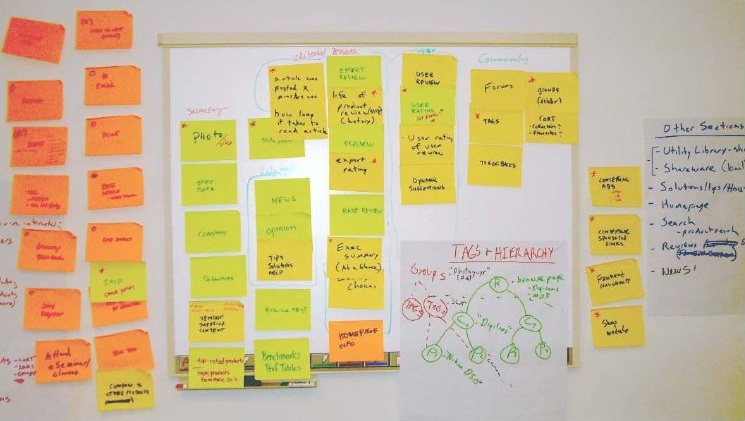
In an open card sort, participants create groups and name them. In a closed sort, they place items into categories supplied by the designer. Both can reveal difficult items, unexpected associations and ambiguous labels. Ask why items belong together rather than treating the final arrangement as self-explanatory.
Agreement is useful evidence, but disagreement can be equally informative. People may organize the same collection by task, topic or organizational role. A card sort does not establish that a finished navigation structure will work under real search conditions. Translate the findings into candidate structures and examine representative routes through them.
Breadth and depth
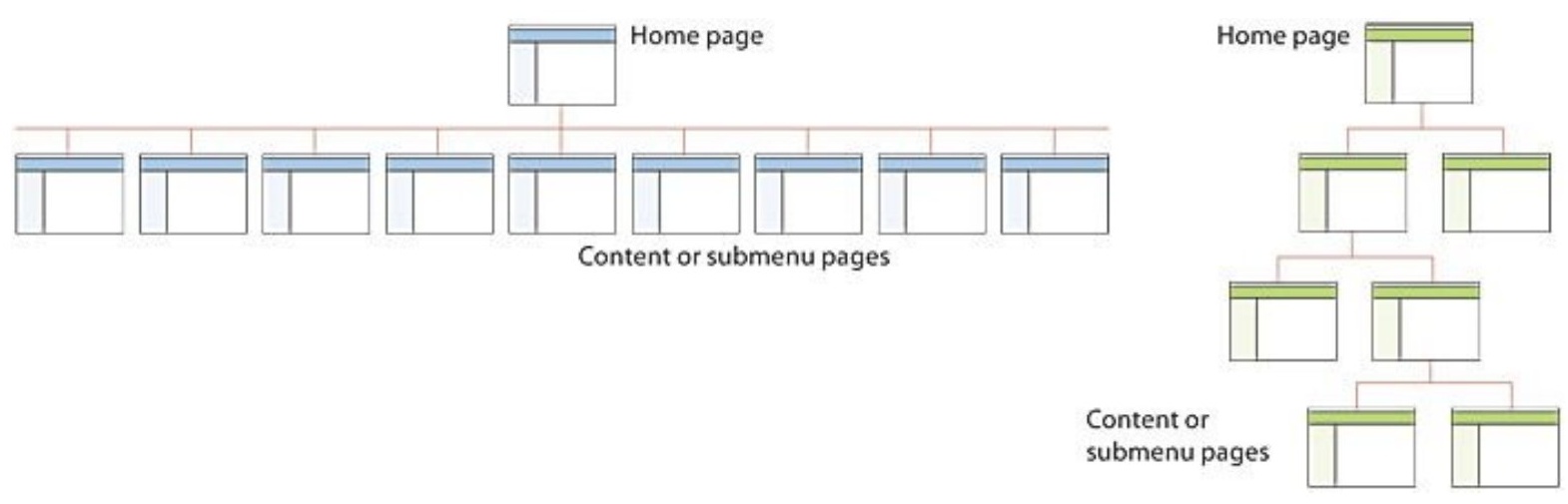
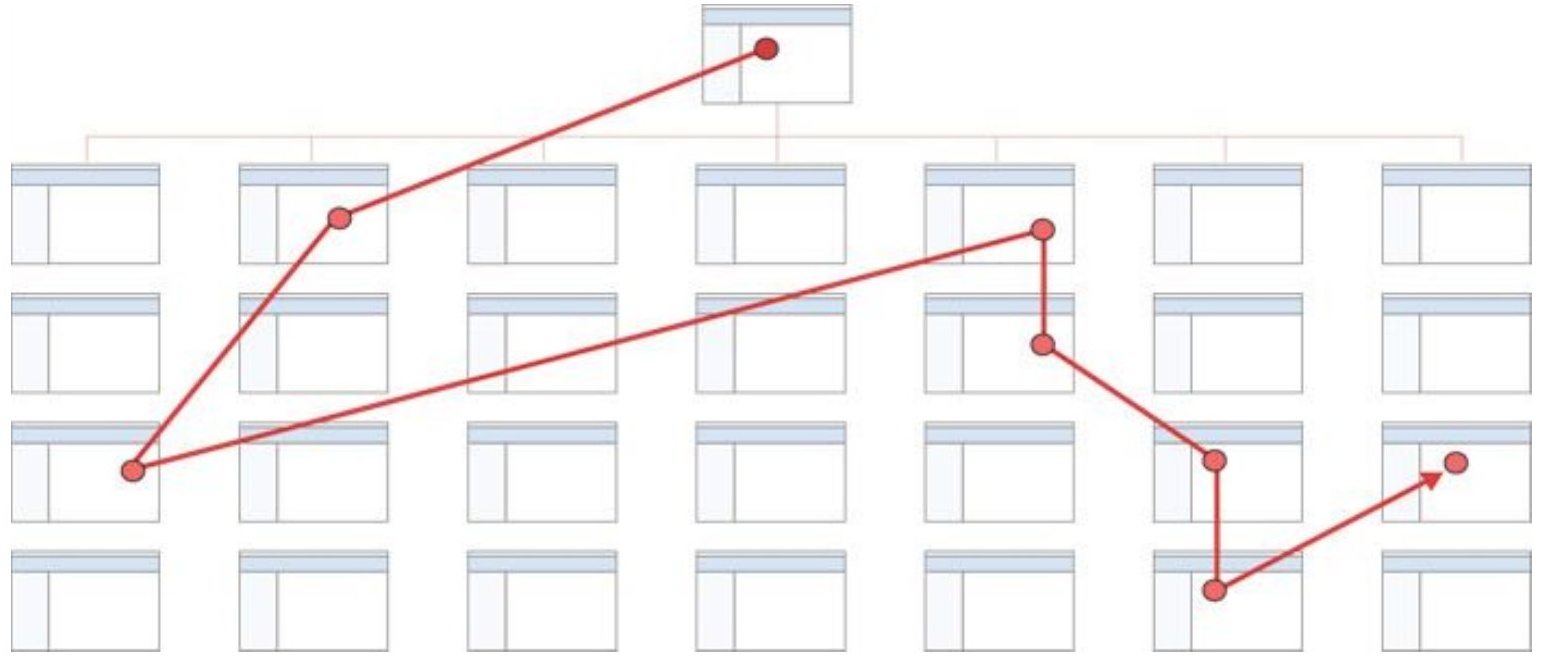
A shallow hierarchy can make many destinations visible, but a large undifferentiated list can be difficult to scan. A deep hierarchy can reduce each local choice while forcing users through labels that do not clearly predict the final destination. These are different sources of effort.
Trace a specific task through both structures. At each level, ask what the user must know and whether the available labels provide that knowledge. Count wrong turns and repeated decisions as well as clicks. A path with one more click can be easier if every decision is clear. A short path can still be difficult when its first choice is ambiguous.
Linear, hierarchical and linked structures
A linear structure fits a process with meaningful dependencies, such as reviewing required details before submitting an application. A hierarchy organizes a collection into increasingly specific groups. A network of links supports relationships that do not fit one parent-child path, such as related papers or alternative methods.
Real applications combine these structures. A reader may browse a hierarchy, follow a related-item link and then enter an ordered submission flow. Make the transition clear. The user should understand whether moving back restores a prior view, changes the current step or abandons an unfinished transaction. Structure and state must be designed together.
Conceptual maps and implementation detail
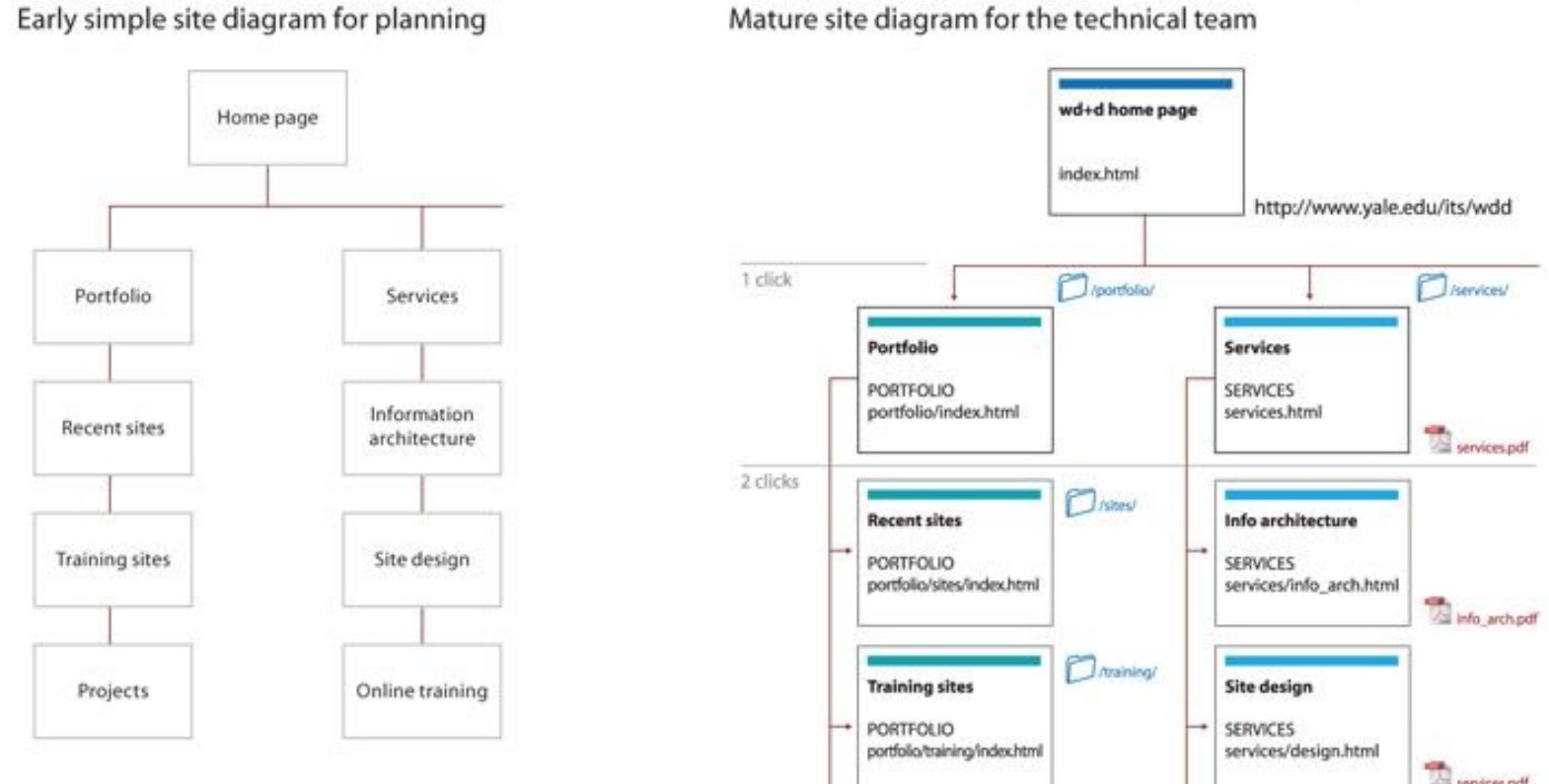
A conceptual site map helps people discuss whether content has the right grouping, labels and relationships. A technical diagram can later add URLs, files, services and implementation dependencies. Mixing both too early makes a design conversation harder because participants must distinguish conceptual choices from technical constraints.
Use the diagram to answer a specific question. If the question is whether students can find eligibility rules from an application page, the relevant relationship is a usable route between those resources. The physical directory containing the files is usually a separate issue. A conceptual map also cannot show every detail of screen layout or dynamic behavior.
Menu size and the 7 ± 2 misconception
Dix explicitly warns against using Miller’s 7 ± 2 as a menu-size rule. A visible menu is not a task in which the user must retain every option in short-term memory. Recognition, visual search, grouping and familiarity all affect the work involved.
This does not imply that arbitrarily long menus are good. It means that a fixed number cannot replace analysis. Compare the organization of the items, the clarity of group labels, the need to scroll and the cost of entering another level. Keep options visible when overview helps, and introduce hierarchy when it provides meaningful distinctions.
Would splitting twelve clear choices into three vague groups necessarily help?
No. The split reduces the number initially visible but adds an uncertain classification decision. Compare paths using the actual labels and tasks before choosing the structure.
Menus, labels and action organization
Actions, destinations and values
The same visual element can conceal different semantics. “Export report” initiates an action, “Reports” names a destination and “PDF” selects a format. Users form expectations from wording, placement and familiar conventions. A mismatch can cause surprise even if the element is easy to see.
Specify what changes after activation. Does a menu item immediately perform an operation, open a dialog or reveal a submenu? Does selecting a value commit it or leave an unfinished edit? An interface should make these distinctions understandable through labels, feedback and consistent behavior, rather than expecting people to discover them by trial and error.
Nested command menus
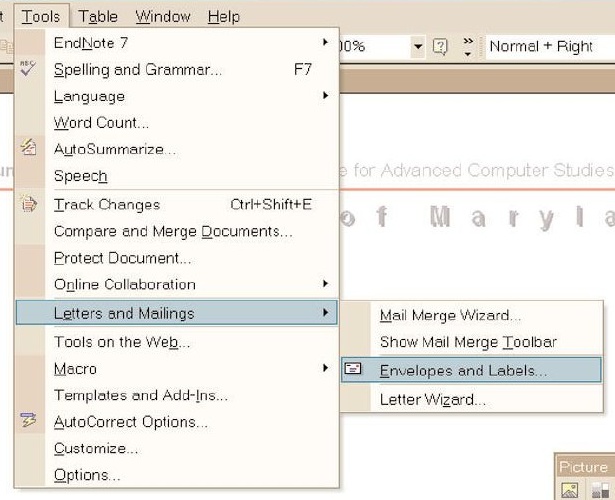
The document-editor menu groups mail-related operations under “Letters and Mailings.” The submenu then exposes particular actions. This arrangement reduces the number of top-level choices, but the user must first recognize the correct group. The interface also asks the user to move into a second menu without losing it.
Analyze both semantic and physical demands. A well-named submenu can help find an action. An unstable submenu or a narrow pointer path can still obstruct execution. Keyboard access and persistent focus can provide another route. Avoid treating the mere existence of grouping as evidence that the interaction is easy.
Ordering choices
Ordering is a design decision grounded in the relationship among choices. Months have a familiar temporal order. Parts of a device may have a useful physical order. A directory of names is often easier to search alphabetically. Process steps should preserve their dependency order.
Frequency and importance can justify prominent placement, but continuously reordering a menu can disrupt a learned spatial pattern. One alternative is a stable main menu with a separate recent-items area. Follow established platform conventions where they help users transfer knowledge, and evaluate exceptions against the benefit they provide for the actual task.
| Choices | Useful order | Reason |
|---|---|---|
| Months | Chronological | Known sequence |
| Authors | Alphabetical | Known name |
| Submission steps | Task dependency | Prerequisites |
| Recent files | Most recent first | Resume prior work |
Label length and meaning
A concise command such as Save can work because its object and effect are established by context. A destination label such as Services may be too broad when it competes with several other categories. Length is only one property of a label. What matters is whether it predicts the intended action or information.
Compare neighboring labels together. “Manage,” “Tools” and “Services” may each sound reasonable while failing to divide the available tasks clearly. More specific wording can reduce guessing. Keep repeated grammatical patterns where they help comparison, but do not remove the words that distinguish one choice from another.
Menus communicate state
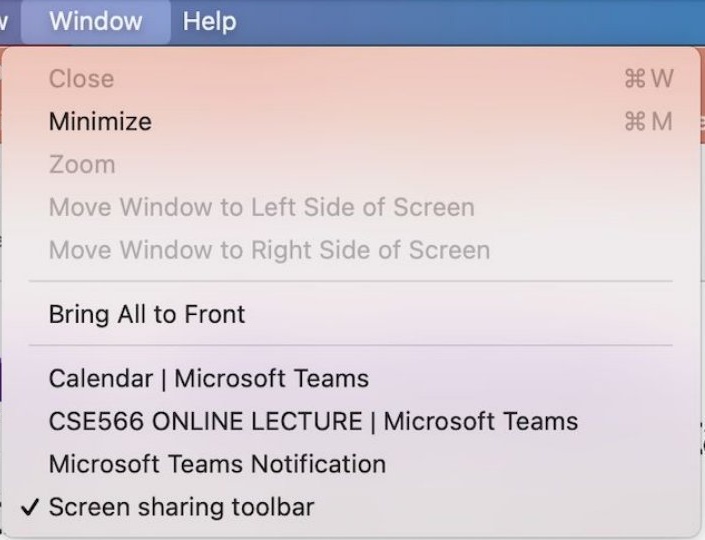
The window menu communicates more than a list of commands. It shows an active window with a checkmark, displays shortcuts and distinguishes unavailable actions. These cues help the user interpret the present state before attempting a command.
Unavailable controls are useful only when their meaning is understandable. If a command requires a selected object, the interface may need to explain that dependency. Removing an action entirely can reduce clutter but can also make the feature undiscoverable. Choose how to represent availability based on the user’s need to learn what is possible and how to reach that state.
Overview menus and visual categories
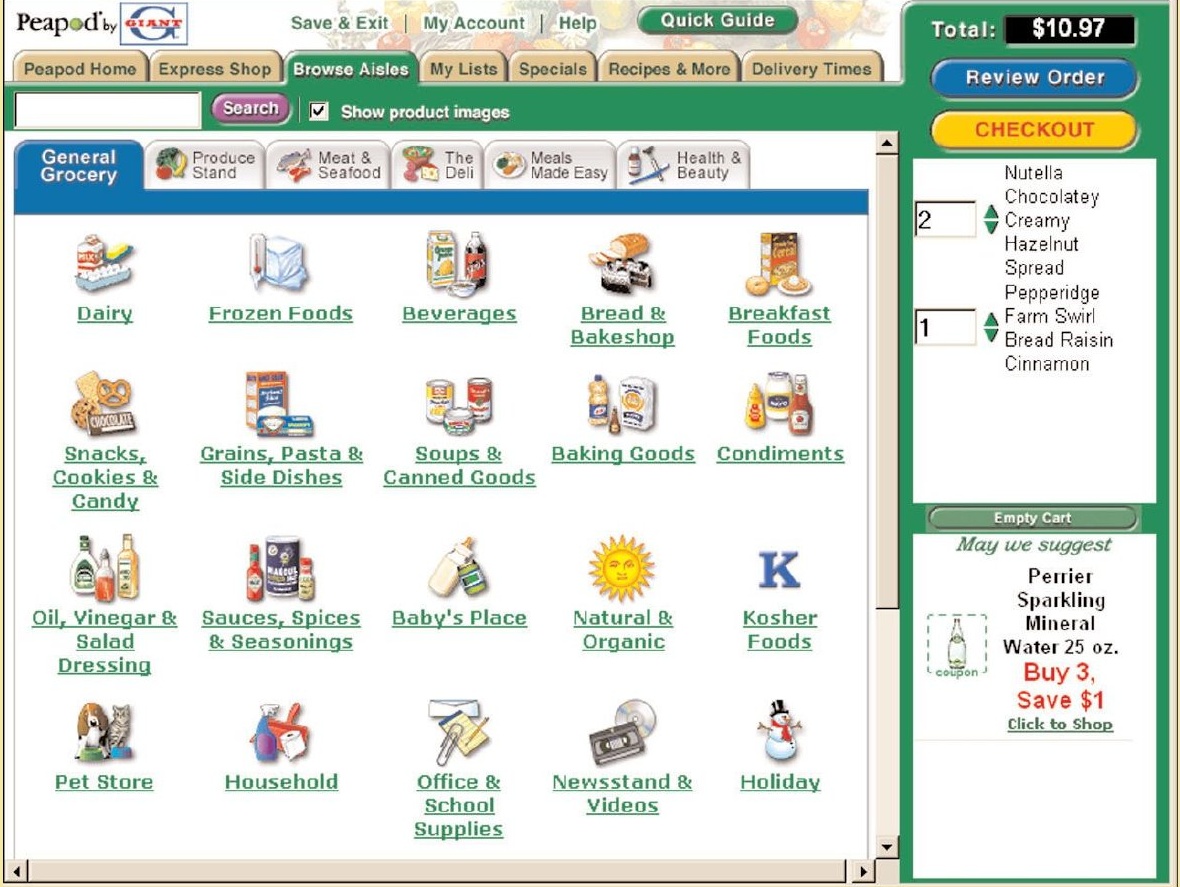
The grocery interface exposes many categories in a grid, combining words with pictures. This provides an overview that a long nested menu would hide. Its usefulness depends on whether categories are distinguishable and whether users can locate likely destinations without confusing unrelated controls.
Examine the competition among category navigation, search, the cart and checkout. An overview can become dense when every region demands equal attention. A photograph or icon helps when it adds useful recognition information. A generic image repeated beside every label adds visual activity without necessarily helping users distinguish the options.
Tabs, toolbars and shortcuts
Tabs are useful when people benefit from seeing a small set of related sections while working in one of them. Toolbars prioritize actions that need frequent access. Menus provide a broader organized inventory. A shortcut can bypass repeated navigation once the user has learned an operation.
These mechanisms should reinforce each other. A toolbar icon and a menu command that perform the same action should use compatible wording, feedback and availability rules. Avoid hiding essential distinctions behind an unfamiliar icon. Also consider what happens when space becomes scarce: moving an action into overflow changes its discoverability, even if the underlying function is unchanged.
Should the most frequently used commands move whenever usage changes?
Not necessarily. Moving commands can undermine learned locations. A stable organization plus a distinct recent or customizable area can support both familiarity and efficient access.
Wayfinding and information scent
Orientation within a collection
Navigation supports an ongoing understanding of location and possibility. A page title identifies the current content. A selected section connects it to a larger structure. Local links reveal neighboring destinations. A return route helps the user recover from a wrong turn or continue after completing a subtask.
People frequently arrive through search results, shared links or saved bookmarks. They may never see the home page. Design internal pages to communicate their identity and context independently. A visually consistent header is helpful, but it cannot substitute for a meaningful title, a clear section relationship and relevant onward routes.
Landmarks and regional identity
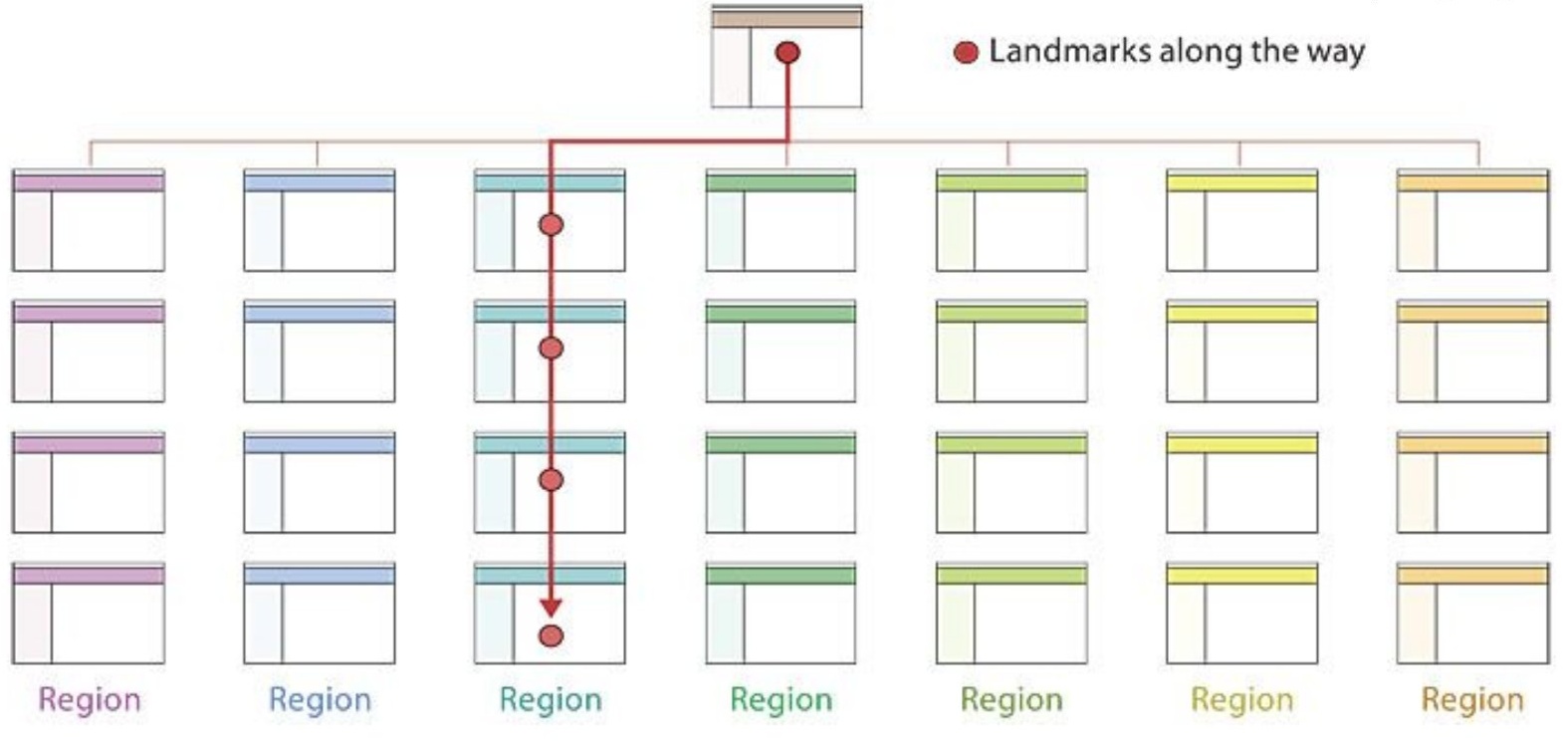
Physical wayfinding uses paths, edges, districts, nodes and landmarks. Interfaces have analogous opportunities: a stable navigation route, a visible section boundary, a distinctive area and a recognizable destination. The analogy is useful when it helps explain how people maintain orientation, not when it forces a website to resemble a physical map.
The region diagram combines a common structure with different section identities. Use headings and selected navigation state alongside visual distinction. Color alone cannot carry the entire relationship. Also preserve meaningful differences: making every page identical can remove the cues that tell a person they have entered a different area.
Breadcrumbs, history and progress
A hierarchy breadcrumb such as Library, Methods, Interviews shows where a resource belongs. It need not show how the user arrived. A person may have entered directly from a search result. Browser history instead records visited states, while a progress indicator communicates stages in a task.
These mechanisms can look similar but support different actions. Returning to a parent category is different from returning to a filtered result set. Moving to an earlier process stage may also expose editable data. Label and implement the route so the user knows what context will be preserved and whether unfinished work will remain available.
| Mechanism | Represents | Example |
|---|---|---|
| Breadcrumb | Structural location | Library / Methods / Interviews |
| History | Visited route | Results, article, related article |
| Progress | Task stage | Details, review, submit |
Information scent
Information scent describes the cues people use to estimate whether a route will lead to useful information. A label, nearby explanation, preview or category can strengthen or weaken that estimate. A link can be visible and easy to click while still providing poor scent.
Klemmer’s credit-union example uses labels such as Transact and Account View. These terms require customers to infer which category contains the service they need. Hidden secondary choices add another layer of exploration. A route becomes easier to judge when its wording matches the customer’s purpose and the destination confirms that expectation.
How could you improve a route labeled “Transact” for someone seeking a payment receipt?
Expose a label or supporting description that names the relevant records, such as “Payments and receipts.” Ensure the destination then presents those records rather than another unexplained menu.
A shared word can suggest the wrong route
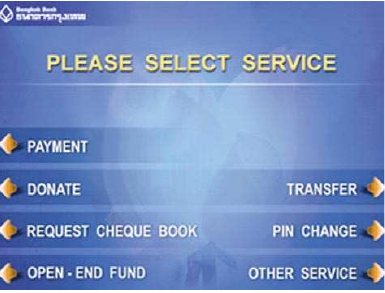
In the ATM example, a person wishing to open a new account may be attracted to “OPEN-END FUND” because it begins with the word “open.” That label names a financial product rather than the action of opening an account. Matching a familiar word can therefore lead to a route that does not match the intended task.
Read the alternatives from the user’s perspective. Which route best predicts the service needed, and what evidence supports that prediction? Improve labels by distinguishing intentions and objects. Additional wording is useful when it resolves a real ambiguity, but simply lengthening every label without sharpening its meaning will not solve the problem.
Links and destination confirmation
Klemmer describes a course-site problem in which students seeking information about tracks had to discover it under a grading-policy label. The content existed, but the route did not clearly promise it. Link wording and page organization jointly affect findability.
Compare “Click here” with “Compare the course tracks.” The second supports scanning and makes the destination more predictable. At the destination, a relevant heading should confirm that the user has arrived. If the page uses different terminology, explain the relationship. Backtracking can indicate a mismatch, but it can also be part of legitimate exploration, so interpret it in context.
Search and refinement
Different search tasks
A person looking for a paper with a known title has a different need from someone exploring an unfamiliar research area. Known-item retrieval benefits from distinctive identifiers and direct matching. Fact finding needs a result that answers a question. Exploration requires useful categories, previews and ways to discover related terminology.
The search interface should reflect these differences. A single text box can be a starting point, but it does not determine how the collection is represented or how results support judgment. Browsing, search and related-item navigation can work together as the user’s understanding develops.
| Task | Starting knowledge | Useful support |
|---|---|---|
| Known item | Title or identifier | Precise match |
| Fact finding | Question | Relevant preview |
| Exploration | Broad interest | Categories and refinement |
Five stages of search
The DTUI search framework separates formulation, initiation, review, refinement and use. Formulation includes choosing a source and expressing constraints. Initiation determines when the system acts. Review helps a person judge the returned information. Refinement lets the person change the question or its scope. Use includes opening, saving, comparing or sharing what was found.
A search can fail at any of these stages. Correct retrieval is insufficient if the results cannot be distinguished. A clear result list is insufficient if selecting a result loses the query and makes comparison difficult. Evaluate the whole interaction rather than only the quality of the matching algorithm.
| Stage | Interface responsibility |
|---|---|
| Formulate | Expose scope and terms |
| Initiate | Show when search runs |
| Review | Support relevance judgments |
| Refine | Make constraints editable |
| Use | Support the next real action |
Search scope and query visibility
Searching a page, a website and a library are different operations. If the scope is unclear, an empty result may be interpreted as evidence that an item does not exist. Explain the collection and preserve the query so users can understand and revise what they asked.
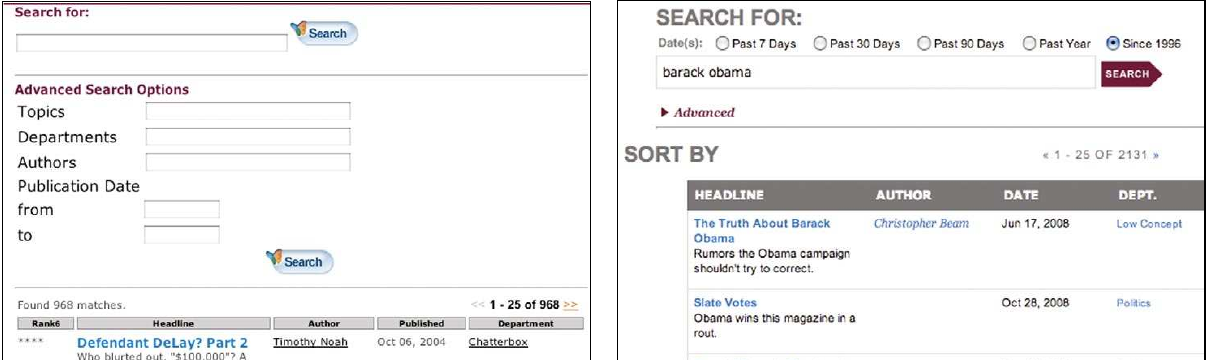
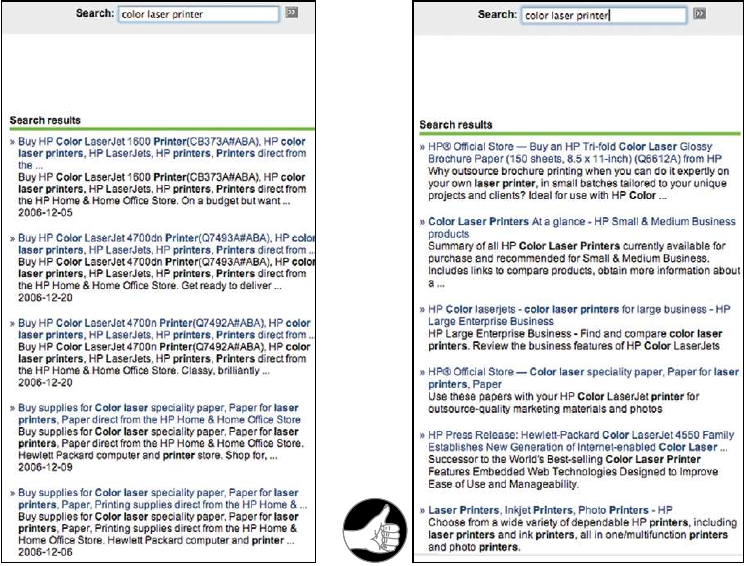
The historical search example shows why visible query context matters during result inspection. A person should not need to remember the exact query after scrolling or opening a result. When returning to the results, preserve useful state such as constraints and position where practical. This supports comparison and reduces repeated setup work.
Results support relevance judgments
A result list is an interface for making decisions. Users compare titles, descriptions, dates, types and other relevant attributes to decide which item deserves attention. Repeated promotional language or generic page headings can occupy the space needed for those distinctions.
The historical HP result example illustrates this problem. A useful redesign would prioritize the attributes that answer the user’s question. The appropriate preview depends on the collection: a paper search may need author, year and abstract context, while a product search may need compatibility and availability. Do not maximize the amount of text without considering its discriminating value.
Facets and dynamic refinement
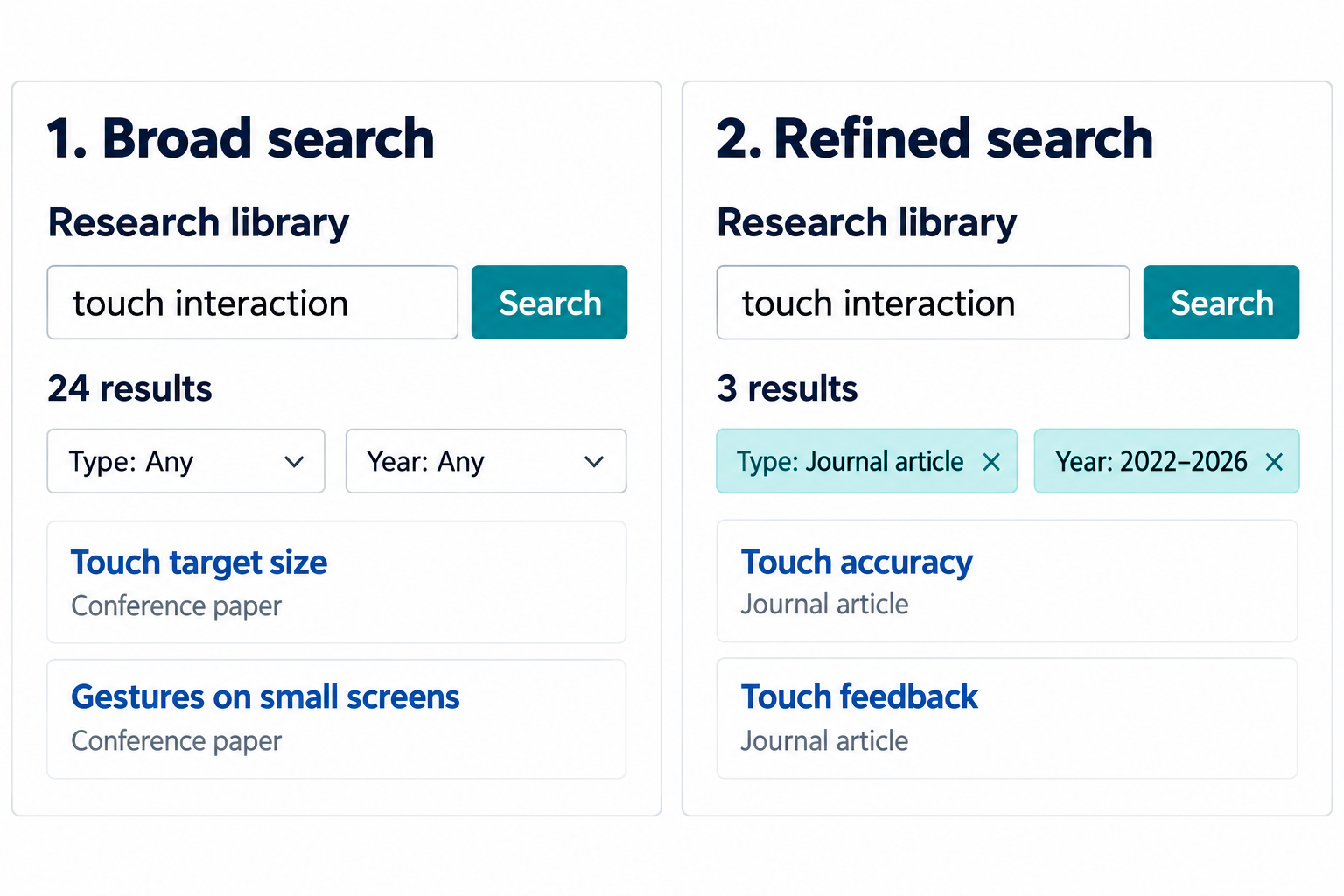
Faceted search combines a query with dimensions such as publication type, year or subject. A facet is useful when users understand the dimension and the available values match the collection. Show the selected state clearly and provide a direct way to remove a constraint without reconstructing the whole query.
Dynamic refinement updates results as controls change. This can make cause and effect easier to inspect, provided the update is understandable and does not unexpectedly disrupt focus or position. If an operation takes time, communicate that work is underway. Do not assume that every collection can provide instantaneous results.
| Research-library search | Current constraint | Possible revision |
|---|---|---|
| Topic | Touch interaction | Add synonym |
| Type | Journal article | Include conference papers |
| Year | 2022–2026 | Widen range |
| Language | English | Remove constraint |
A search query with visible constraints
Start with touch interaction in the research library. The broad search returns 24 items, including conference papers. You want recent journal articles, so select Journal article and the years 2022–2026. The result count becomes 3. The two previews shown are enough to inspect the presentation, while the count communicates the size of the complete result set. Neither the smaller count nor the word journal proves that these items answer your research question.
The interface retains the query above the results and displays each active constraint beside its remove control. This makes the search inspectable. If the result set seems too narrow, remove the type restriction without retyping the query or losing the date range. A useful facet describes an attribute of the records. It should not conceal a new query or switch to a different collection without explaining that change.
Walk through the five search stages here. Formulate the topic and scope, initiate the search, review the previews, refine using type and year, then open or save a selected item. After each refinement, the displayed results must correspond to the visible constraints. During a delayed update, keep the selected controls visible and indicate that the results are being refreshed, so old results are not mistaken for the new set.
Empty results and recovery
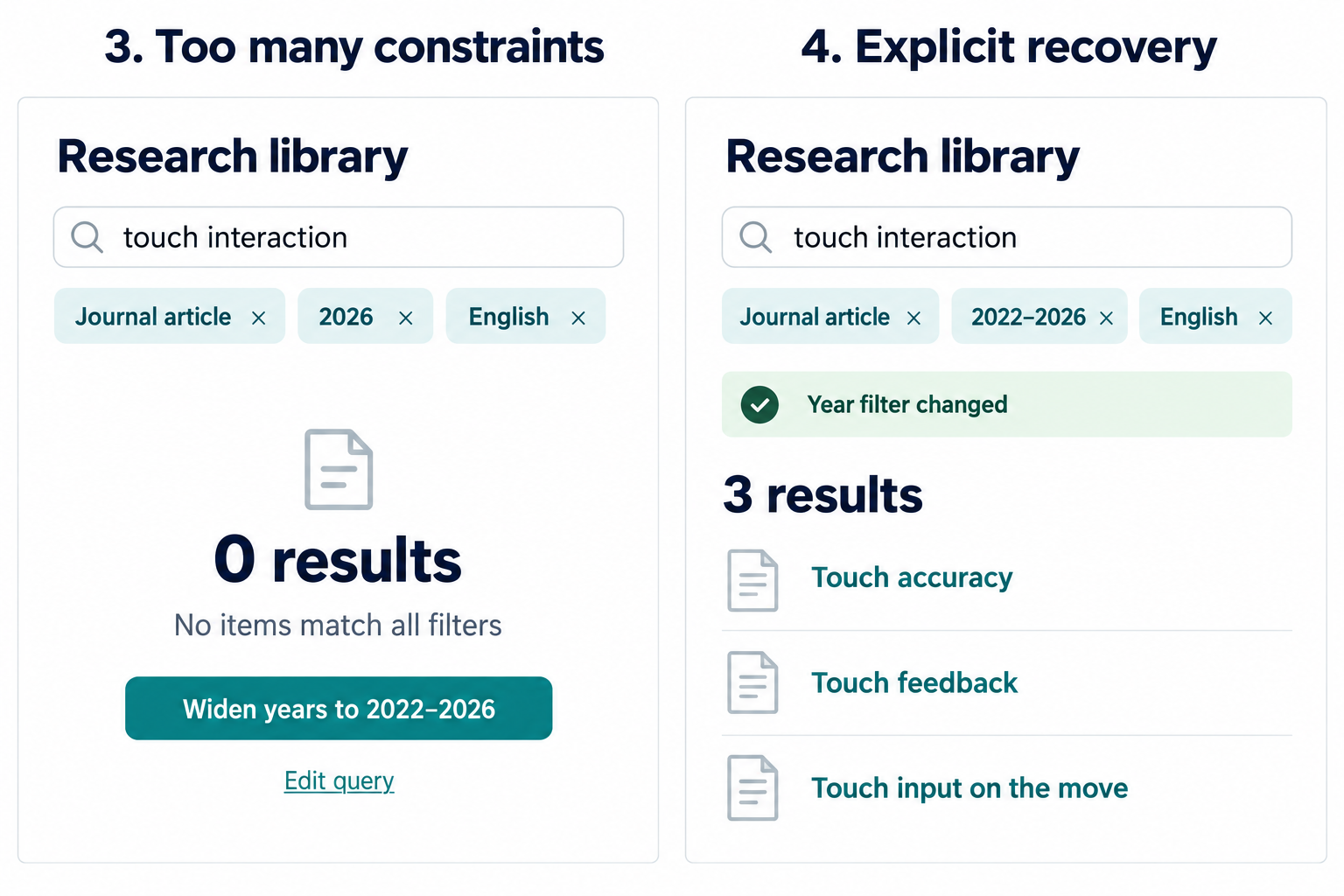
Suppose a research-library query combines touch interaction, journal articles, a recent date range and one language. Zero results do not establish that no relevant work exists. The intersection may simply be too narrow, or the terminology may differ from the collection’s vocabulary.
Explain the active constraints and offer concrete revisions such as widening the years or including conference papers. Do not silently remove a filter while presenting results as if they satisfied the original request. A helpful recovery gives users control over the change and makes the new result set’s meaning explicit.
Continue the search by narrowing the year to 2026 and selecting English. The interface now reports zero results. The user can inspect every active restriction rather than infer which one caused the empty set. The proposed recovery names a particular change: widen the year range to 2022–2026. Activating it restores three results in this collection, while keeping touch interaction, Journal article and English.
The status message Year filter changed confirms the revision, and the visible chip shows the new range. This is the difference between a transparent recovery and silently broadening a query. A suggestion need not promise a particular result count unless the system has computed it. When exact counts are unavailable, offer the change as a possible next step and report its outcome after it runs.
Should the interface quietly remove all filters to avoid an empty page?
No. That changes the request without explaining it. Preserve the constraints, suggest a useful relaxation and show which constraint changed when the user accepts it.
Using a search result
A student may search for several papers in order to compare methods, rather than to open one item and stop. Support the next task by retaining useful context and allowing selected items to be saved or compared. A saved search and a saved result set have different meanings: the former can produce new results later, while the latter records particular items.
Make these distinctions visible. If an export includes only selected rows, communicate the selection and scope. If a query is shared, preserve the constraints that define it. Search design is complete only when the user can apply the information to the purpose that motivated the search.
Screen structure and visual hierarchy
Grouping communicates relationships
Visual organization influences how people interpret a screen before they read every label. Items that sit close together tend to appear related. Consistent alignment can support scanning, while spacing can distinguish neighboring groups. These cues should reflect the task and the data relationships.
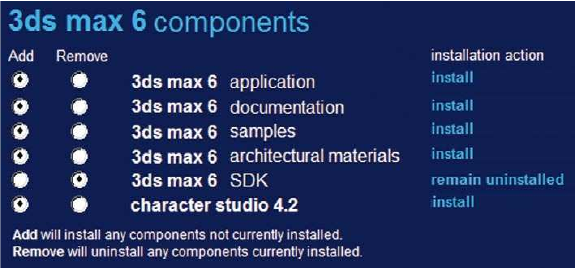
In the component-selection example, Add and Remove belong to individual components. If vertical spacing makes the actions appear grouped across components instead, the visual organization competes with the actual decision. Inspect the association a person is likely to perceive, rather than judging only whether the elements line up neatly.
Local actions and dialog actions
A dialog can contain actions that modify a selected item and actions that accept or abandon the entire dialog. Their position should help communicate this difference. A list’s local controls should have a clear relationship to the list, while the final confirmation should communicate its broader scope.
The grouped dialog example uses spacing to establish these relationships without enclosing every element in a separate box. The lesson is not that borders are always wrong. It is that hierarchy should be purposeful. Too many equally emphasized boundaries can make the screen harder to interpret by treating every relationship as equally important.
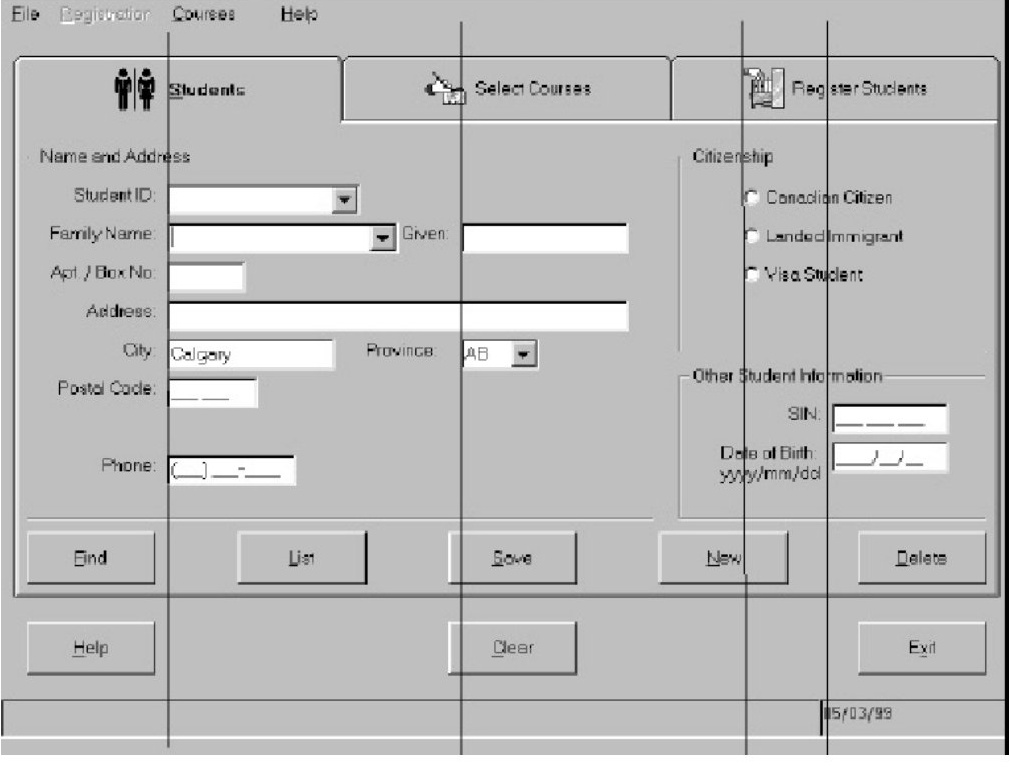
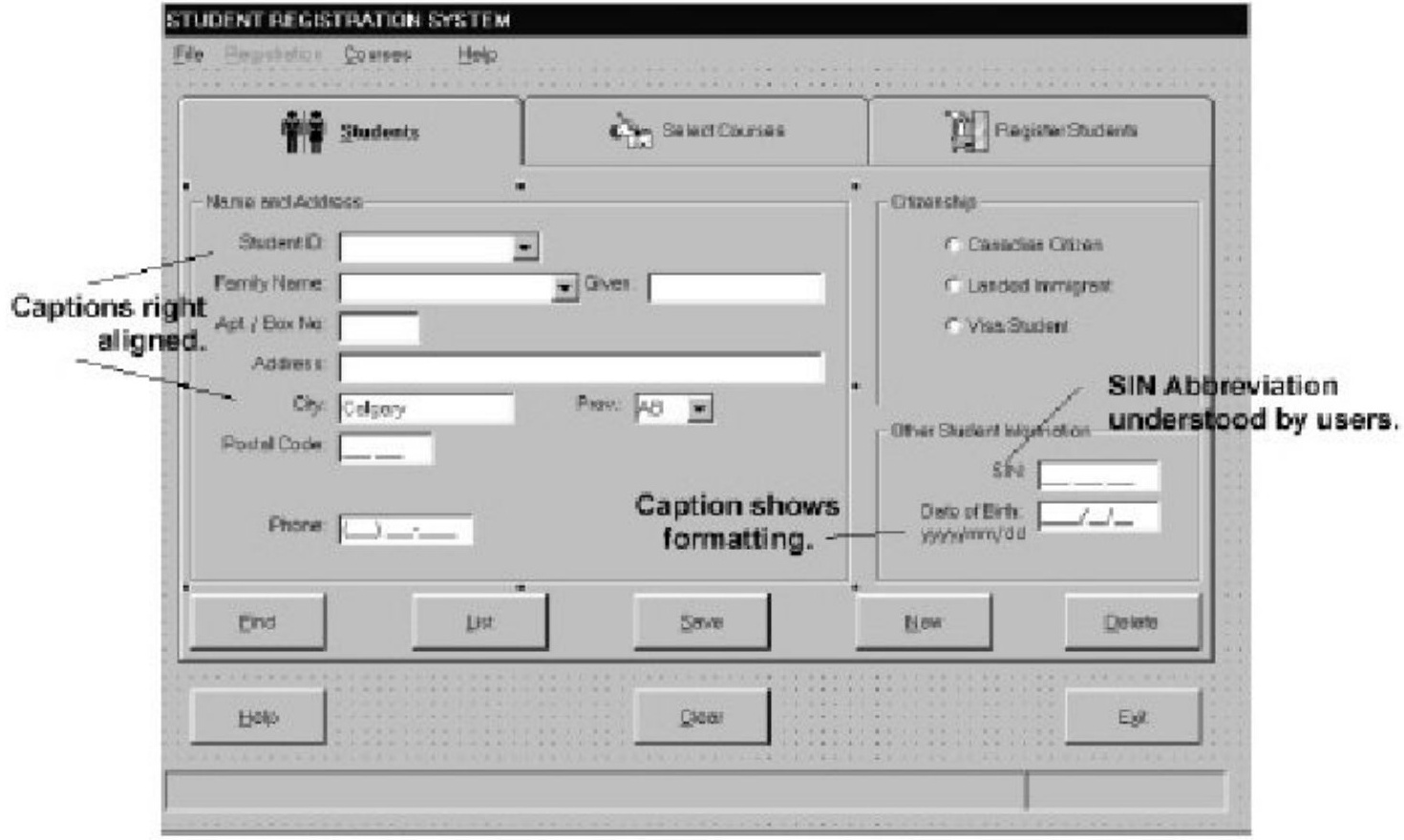
Alignment in a registration form
The registration form combines a name-and-address group, citizenship choices and other student details. Alignment helps connect captions to values. Group headings explain why some fields belong together and distinguish those groups from the record-level actions below.
Evaluate the organization as well as its appearance. A field’s length can suggest the expected amount of input, but it should not impose an unjustified limit on legitimate data. Captions must remain associated with their controls when the layout changes. A form that appears orderly can still fail if its groups do not match the user’s task or its abbreviations are unfamiliar.
Hierarchy and task priority
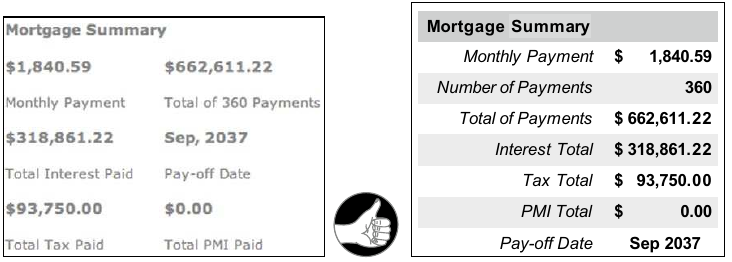
A summary screen may contain many legitimate values. The designer’s task is to make their relationships understandable and give appropriate emphasis to the decision the user is making. Removing context solely to create empty space can make a comparison harder.
In the mortgage-summary comparison, inspect how labels and values form groups. The teaching question is whether the user can identify related information without repeatedly tracing across the screen. Similar issues arise in invoices, scientific results and account summaries. A larger font alone cannot repair a confusing label-value association.
Responsive layout and retained context
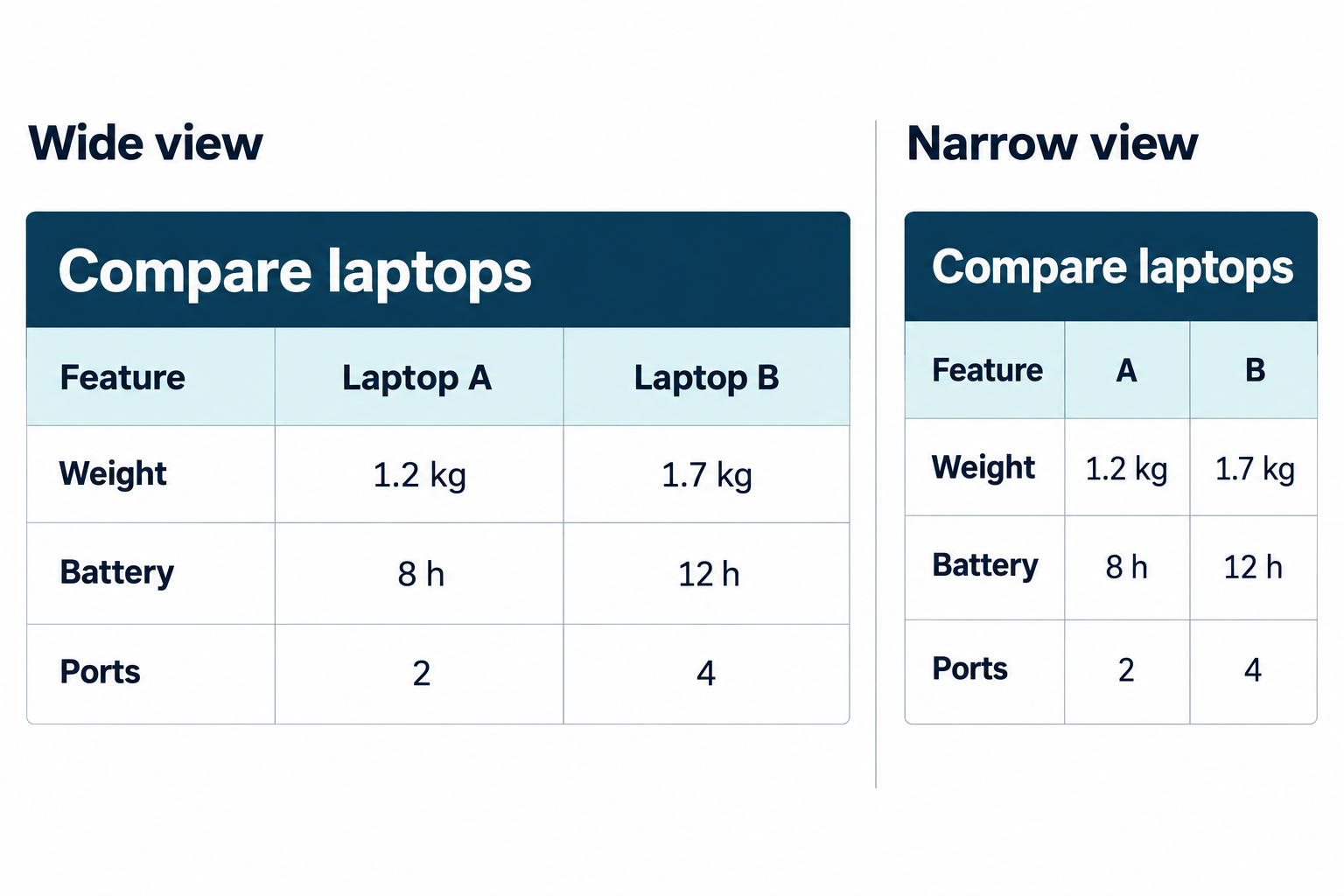
When space narrows, a side-by-side layout may need to become a sequence. Decide which information must remain adjacent and which actions need to stay easy to locate. A two-column form that becomes one column should still place each label and hint next to its field.
A comparison task may require a different treatment from simple reading. Stacking every value from object A before every value from object B can increase memory demands. Consider aligning corresponding attributes or offering an explicit comparison view. Responsive design therefore changes information presentation, not merely element widths. The resulting order also needs to make sense for keyboard and assistive-technology users.
In the laptop comparison, A weighs 1.2 kg and B weighs 1.7 kg. B offers a listed battery duration of 12 hours rather than 8. A shopper weighing portability against battery duration can compare the two values on each row. If a narrow layout instead lists every attribute of A followed by every attribute of B, the shopper must remember A while reading B. Keeping the paired values adjacent preserves the operation the layout is meant to support.
The narrow version shortens the product headings to A and B while retaining their correspondence with the wide version. A real product view would keep the product names available, for example in a persistent header. This compact table works for short labels and two products. For long descriptions or many products, provide deliberate horizontal scrolling or let the user choose a smaller comparison set. Test that keyboard and assistive-technology reading order still connects each value to its row and product.
Scanning depends on the task
Reading an essay, locating a command and comparing two records impose different demands. A useful layout provides cues that fit the task, such as informative headings, aligned values or distinct action groups. It should not assume that every user will follow one prescribed path across the screen.
Inspect the actual task: where does the person start, which information must be compared, and what must be checked before acting? These questions lead to more defensible decisions than treating a letter-shaped scanning pattern as a universal law. Visual hierarchy supports attention, but it does not guarantee that a critical detail will be noticed.
Why might a clean form still be difficult to use?
Its visual order may not match the task. Ambiguous groups, unfamiliar labels or actions separated from their objects can remain even when every field aligns perfectly.
Forms, control choice and validation
Field design starts with the data
A form should collect information required for a purpose. List the needed values and examine their meaning, relationships and sources. Then discuss the grouping and vocabulary with the people who will use it. Choosing a text box for every value before understanding the data can create unnecessary entry and validation work.
Ask whether a value already exists, whether the user can reasonably know it and whether the system can derive it reliably. Derivation also needs transparency when a person must verify the result. A form is a model of a task and its information requirements, not simply a visual arrangement of database columns.
Labels, formats and abbreviations
The annotated registration form illustrates decisions about alignment, date formatting and abbreviations. A visible date format helps disambiguate the requested value. The annotation assumes that SIN is understood by its intended users, but that assumption would not automatically hold for another population.
Keep labels available after entry so people can review what a value means. Placeholder text alone disappears and can make later checking difficult. If a field requires an unusual identifier, explain its purpose and where to find it. If the format is flexible, accept reasonable variations rather than forcing users to discover an arbitrary punctuation rule.
Controls reflect the choice structure
Radio buttons ordinarily express one choice from a visible set, while checkboxes support independent selections. A select list saves space but conceals alternatives until it opens. A searchable list can help when users know enough about a large set to narrow it effectively.
Choose the control from the decision, not from an arbitrary numerical cutoff. Consider whether alternatives must be compared, whether users know the vocabulary and whether a default is legitimate. A slider suits approximate adjustment along a meaningful range, but exact numeric entry may need a field as well. Make the selected value clear and operable without relying on color alone.
| Decision | Possible control | Important condition |
|---|---|---|
| One visible choice | Radio group | Mutually exclusive values |
| Several choices | Checkboxes | Independent selections |
| Known item in large set | Searchable list | Understandable vocabulary |
| Approximate range | Slider | Visible value and limits |
| Exact value | Numeric entry | Units and valid range |
Defaults and prefilled values
A sensible default can make a routine task easier, especially when most users need the same setting. However, people may accept a prefilled value simply because it is already present. A default should therefore be appropriate to the context and easy to inspect and change.
Distinguish a suggested value from a value retrieved from an existing record. They have different evidential status. For example, a stored contact address and a guessed country should not appear equally authoritative if the difference matters to the task. For high-consequence choices, requiring an explicit selection can be preferable to silently making the decision for the user.
Field validation
Validation checks whether entered data satisfy constraints. A type check can reject letters where a quantity is required. A format check can identify an incomplete date. A valid-choice check compares an identifier with the allowed set. A range check examines limits, while a consistency check relates values across fields.
These checks establish different things. A correctly formatted address is not necessarily deliverable, and a plausible number is not necessarily accurate. Avoid describing a value as verified when the system has only checked its syntax. Explain the constraint that failed and give the user a meaningful route to repair it.
| Check | Example | What it establishes |
|---|---|---|
| Type / format | Date can be parsed | Usable representation |
| Valid choice | Existing course code | Membership in allowed set |
| Range | Quantity between limits | Constraint satisfied |
| Consistency | End after start | Relationship satisfied |
Record-level consistency
An application can contain a valid start date and a valid end date while still placing the end before the start. The individual values satisfy their formats; their relationship violates the task constraint. Similarly, a selected option can create a requirement for additional information elsewhere in the record.
Present the relationship in the message. “End date must follow start date” is more useful than “Invalid record.” Keep both relevant values accessible, and avoid making users infer which part of the record caused failure. If changing one field invalidates another, explain the consequence rather than silently deleting the affected input.
Why can a form reject Save after accepting every field?
A cross-field or record-level rule may fail. The feedback should identify the related values and explain the required relationship, while preserving the entered data.
Validation timing
Showing an error after the first character of a date can interrupt normal entry. Waiting until a long form is submitted can also create unnecessary recovery work. The useful moment depends on what can be judged and whether the user has had a reasonable chance to finish the value.
Validate meaningful completed input where that supports correction, and recheck relevant constraints before commitment. Some checks depend on data elsewhere in the form or on a remote system. Make pending checks and failures understandable. Do not trap users inside one invalid field if they need to inspect other information to correct it.
Error identification and preserved input
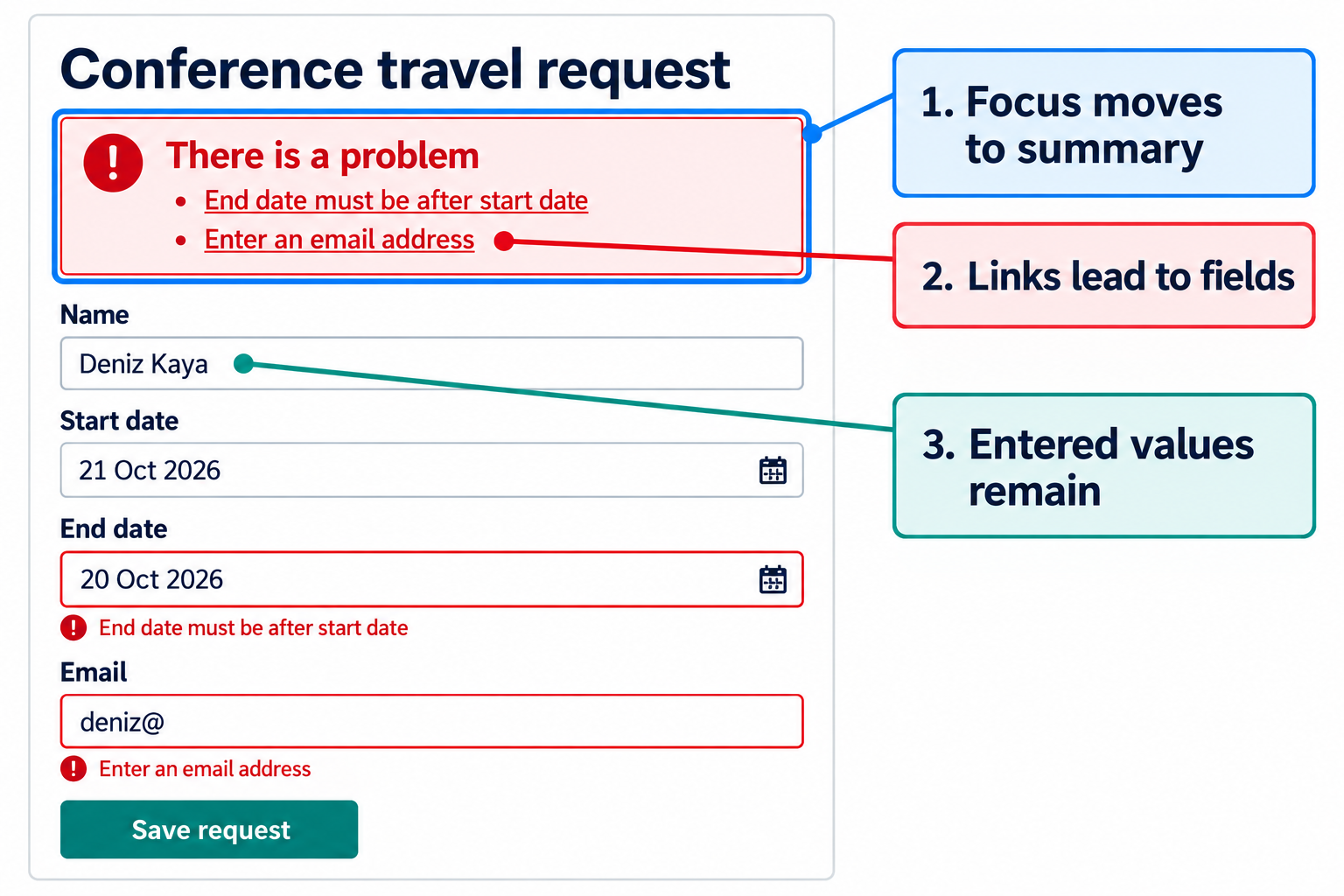
A failed submission should preserve the work the user has already done. Identify the affected field and explain the correction in plain language. A form-level summary can help locate several problems, while a local message explains the particular field. The two should agree and provide a practical route to correction.
For example, “Enter a four-digit year” tells the user more than “Bad value.” If the rule concerns two dates, mention that relationship. Avoid clearing a field merely to emphasize that it is wrong. The existing value is often the best starting point for repair and may reveal why the error occurred.
| Weak message | More useful message |
|---|---|
| Invalid value | Enter a four-digit year |
| Record rejected | End date must follow start date |
| Missing information | Select the delivery method |
| Error 12 | The file could not be saved. Your edits remain open. |
Accessible error notification
The GOV.UK Design System pairs an error summary with messages beside the affected answers. Its pattern moves keyboard focus to the summary and links each error to the relevant input. Matching wording helps people recognize the same problem at both levels. These are concrete choices in a design system, rather than a requirement to copy its visual style into every interface.
W3C’s forms tutorial distinguishes overall submission feedback from feedback near controls. A visible red border alone does not communicate enough. Explain the issue in text, make the field identifiable and ensure the notification is available to people who are not visually scanning the page. Successful submission also needs clear feedback so that people know the task has completed.
| Level | Purpose | Connection |
|---|---|---|
| Summary | Locate the problems | Link to affected input |
| Field message | Explain the repair | Match summary wording |
| Submission result | Confirm outcome | Identify task completion |
GOV.UK Design System: Error summary; W3C WAI: User Notification.
A failed form submission with a repair path
The travel request requires an end date later than its start date. The entered dates, 21 October and 20 October 2026, each have a readable format, but their relationship violates that rule. The email value deniz@ also lacks a complete address. Submitting the form therefore leaves the request unsaved and identifies two problems. The name and both date values remain in place. Keeping the erroneous value is useful too: it lets the person recognize and repair the mistake.
Keyboard focus moves to the error summary after this failed submission. Its two links lead to the corresponding fields. The same date message appears in the summary and near End date, so the person can recognize the problem after moving. The email message requests the missing information; a more explicit format hint, such as name@example.com, can help when the expected structure is unfamiliar. A red outline supplements the explanation but does not carry it alone.
To finish, follow the date link and enter 23 October 2026, then complete the email address. Check the whole record again before saving, because correcting one value may affect a relationship elsewhere. On success, show a clear saved outcome. Do not make the user infer completion merely because the errors disappeared. This walkthrough describes interaction behavior: a still image by itself cannot demonstrate keyboard focus or programmatic associations.
Save, Apply, Cancel, Clear and Delete
These labels must describe distinct consequences. Save commonly commits changes to a record or document. Apply often commits settings while leaving the dialog open. Cancel typically abandons an unfinished operation. Clear removes entered values, while Delete removes an existing object. Their exact behavior must remain consistent within the application.
Show the scope. Canceling an edit should not unexpectedly delete the saved record. Clearing search filters should not erase stored data. If an operation has already committed, Cancel may be unable to reverse it and a separate undo or compensating action may be necessary. A familiar label cannot substitute for a coherent state model.
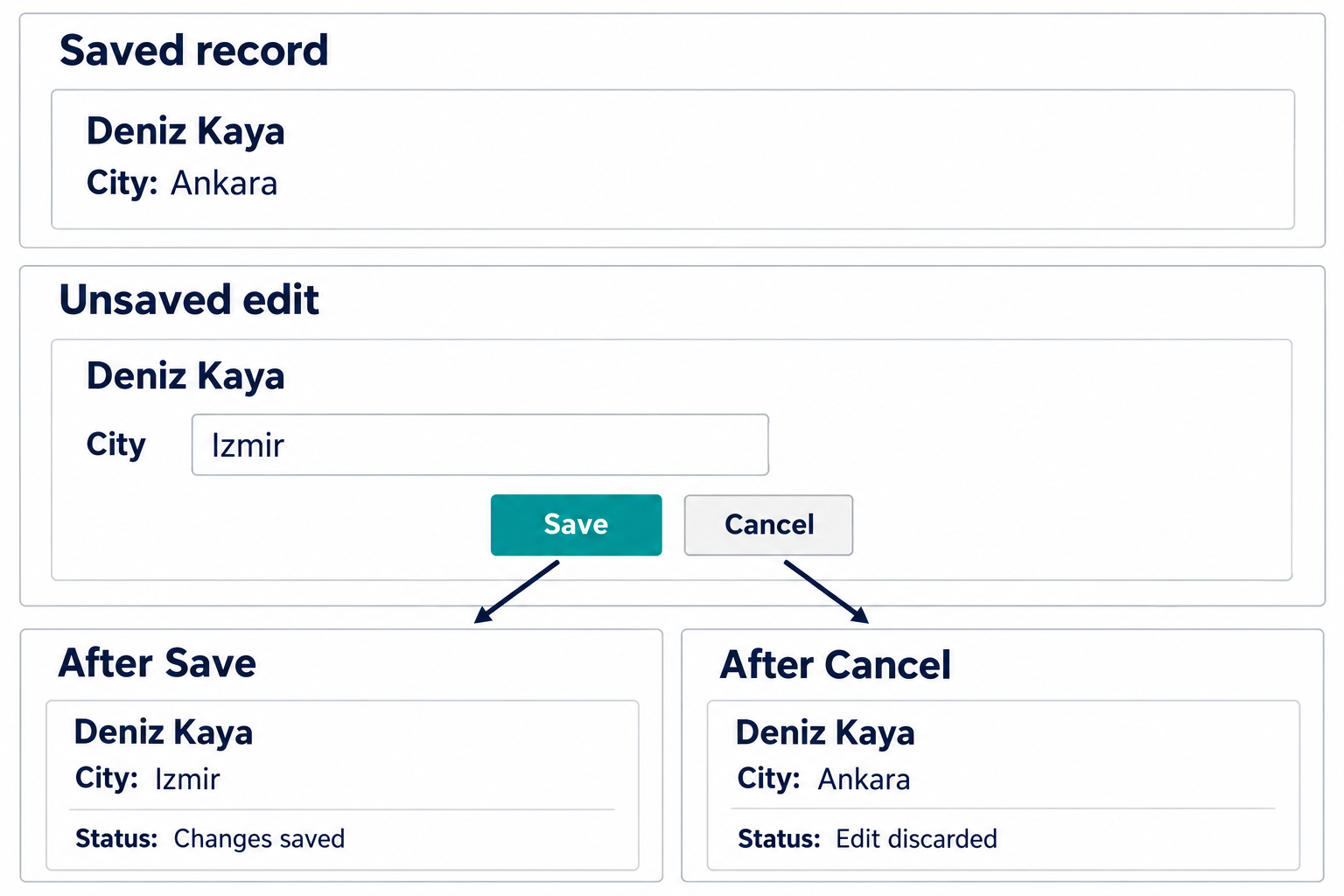
Saved data and an unfinished edit
Read the contact record before editing: the stored city is Ankara. When the user types Izmir in the edit field, there are two relevant values: the saved value and the unfinished draft. They may look similar on screen, but they have different consequences. Other views should not present the draft as committed unless the application deliberately supports live updating and makes that behavior clear.
In this interaction, Save validates and commits the draft. The record then displays Izmir and confirms that the change was saved. Cancel abandons the unfinished edit and displays the still-saved Ankara. It does not delete Deniz Kaya or erase the old city. Once Save succeeds, Cancel cannot be expected to restore Ankara, because the unfinished edit has ended. Reversing a committed change needs Undo, a version history or a new edit.
This distinction also explains why an autosaving application needs different wording. If every field change commits immediately, a Cancel button that merely closes the view would invite the wrong expectation. Specify the commit boundary before choosing the labels. A designer should be able to state which data exist before and after every action.
Apply, Clear and Delete change different things
Consider a settings dialog whose stored zoom level is 100%. You enter 125% and select Apply. The application changes to 125% and keeps the dialog open. You then type 150% but select Cancel. Under the behavior specified here, Cancel discards only the unapplied 150% draft, leaving the already applied 125% setting. Reverting to 100% requires another committed change. If a product instead restores the opening value, it must make that different behavior understandable.
Clear and Delete have different objects. Clear city empties the city field in the current draft. Until a later Save, the stored contact still contains Ankara. Delete contact removes the stored contact itself, not just the text in one field. Because the scopes differ, these actions should not look like interchangeable ways to close a form. The table makes the before and after values explicit.
Recovery should name its scope too. Undo delete may restore a contact, while Undo typing restores a field edit. If deleting the record also affects linked data, explain those consequences before commitment and define what recovery can restore. The label, resulting state and recovery operation must describe the same action.
| Action and starting state | Draft after action | Stored state after action |
|---|---|---|
| Apply: 100% saved, 125% draft | 125%; dialog stays open | 125% |
| Cancel: 125% applied, 150% draft | Unapplied edit discarded | 125% |
| Clear city: Ankara saved | Empty city field | Ankara until Save |
| Delete contact: record exists | Editing ends | Contact removed |
Feedback, errors and recovery
Feedback describes the operation state
A button press can be recognized before the requested operation finishes. Distinguish receipt of input, work in progress, completion and failure. A transient animation confirms activity but may not explain whether a file was saved or a message was sent.
Choose feedback that helps the person decide what to do next. During a long operation, identify the operation and any available cancellation action. At completion, identify the outcome. If a failure leaves uncertainty about whether the operation committed, avoid encouraging a blind repeat that could create a duplicate. The user needs a way to inspect the actual state.
| State | Useful feedback | Possible action |
|---|---|---|
| Ready | Available operation | Start |
| Working | Activity and scope | Wait or cancel |
| Completed | Result and affected object | Continue |
| Failed / uncertain | What is known and preserved | Inspect, repair or retry |
An upload operation and its outcomes
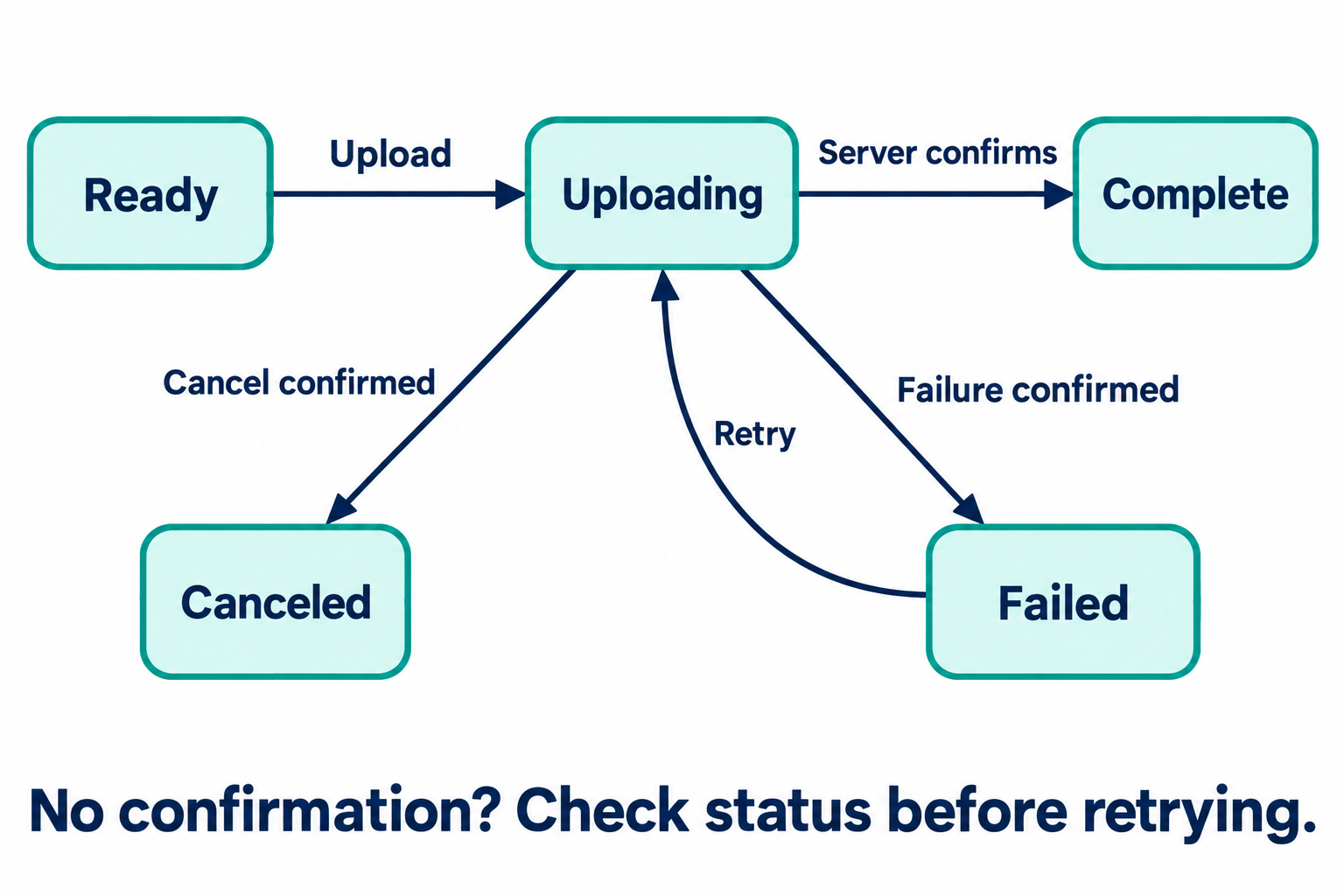
A student selects a report file. Ready means the file is selected but no upload has begun. Uploading means the system accepted the action and is attempting transfer. Complete means the service confirmed the required outcome, such as storing the report. A progress bar reaching its end is insufficient if a later processing or confirmation step remains. The visible state should describe the operation the student cares about.
The Failed branch applies when failure is confirmed. Retain the selected file and provide Retry, which begins a new attempt from a known condition. Cancellation also needs an outcome. Selecting Cancel can request cancellation before the system has confirmed that work stopped. Until that confirmation arrives, show that cancellation is pending instead of claiming the upload was canceled.
The five-state diagram deliberately separates confirmed outcomes from uncertainty. A lost network response can leave the application unsure whether the service stored the report. That situation requires checking status before offering a blind repeat. In a system that cannot determine the outcome automatically, explain the uncertainty and provide a practical route to inspect the submitted record.
A timeout can leave the outcome unknown
Suppose the service stores report.pdf but the confirmation never reaches the browser. A message saying Upload failed would be stronger than the available evidence. If the student immediately retries, the service may create a duplicate. A more accurate interface says that it could not confirm the outcome and checks the submission record. While that check runs, it should preserve the selected file and avoid promising that nothing was saved.
The table distinguishes three situations. A confirmed rejection can offer a relevant repair followed by retry. A confirmed success can show the saved item and its receipt. An unknown result needs status checking, not a made-up success or failure. This is an interaction-design issue even when engineers later solve duplicate prevention at the service level: the user still needs to know whether to wait, inspect or act.
Ask what the user would do after each message. If all three states lead to an identical Try again button, the interface conceals a meaningful difference. Prefer an action that follows from the known state. For a confirmed size-limit rejection, for example, identify the limit and retain the file selection while the person chooses a smaller file.
| What the system knows | What the interface says | Useful next action |
|---|---|---|
| Server rejected the file | File was not stored | Repair the cause; retry |
| Server confirmed storage | Report saved | Open saved report |
| No confirmation received | Outcome not yet confirmed | Check submission status |
Progress needs the right scope
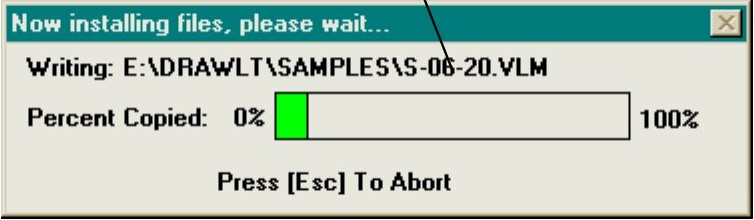
The copy-progress example updates feedback for one file at a time. This can show activity while failing to communicate how much of the overall operation remains. Users may repeatedly see a bar complete and restart without understanding whether they are nearly finished.
Choose a denominator appropriate to the user’s question. Files completed, bytes transferred and estimated time represent different properties. Do not present precision the system cannot justify. If cancellation leaves some files copied, explain that result rather than implying that the entire operation was rolled back. Feedback and recovery should use the same account of the operation’s scope.
Mistakes and slips
If a user believes Delete means remove an item from a view but it actually deletes the underlying record, the problem may involve an incorrect understanding of the operation. If the user intends to delete one item but clicks its similar neighbor, the intended plan may be sound while execution goes wrong.
These mechanisms can coexist. Improve the conceptual explanation where meanings are misunderstood, and reduce selection or execution hazards where slips occur. Do not use the classification to blame the person. Use it to choose interventions that address how the interaction failed.
| Mechanism | Example | Possible response |
|---|---|---|
| Wrong plan | Misunderstood deletion scope | Clear object and consequence |
| Wrong object | Adjacent similar items | Distinction and recovery |
| Habit capture | Routine overrides intention | Visible task context |
| Mode error | Same action, different state | Visible mode and safer mapping |
A phone mode error
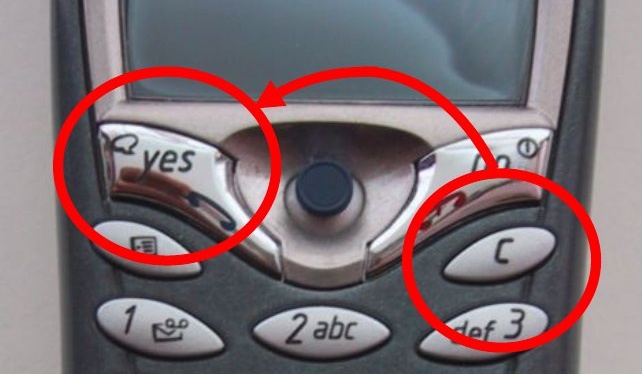
Dix’s phone example shows a complete mode-error mechanism. The owner repeatedly uses C followed by Yes to remove a lock. If the phone is already unlocked and has entered the phone book, the same sequence can mean delete and confirm. A well-practiced action now produces a different result.
The confirmation does not necessarily help because it is part of the habitual sequence. Reducing this risk requires examining the relationship between state and action. Make the current mode understandable, avoid dangerous reuse of a routine sequence where possible and provide recovery when the consequences can be reversed.
Capture, description and lost goals
Capture occurs when a strongly practiced sequence takes over a less familiar intended one. A description error involves acting on an object that matches an insufficiently specific description, such as choosing the wrong similar file. Loss of activation concerns losing the active goal, often after an interruption.
The remedies differ. Distinct objects and clear selections help with wrong-target actions. Visible task context and resumable state help after interruptions. Reversibility can limit damage across several mechanisms. Adding a warning to every action is not a general solution because warnings can themselves become part of a routine that receives little attention.
An exit from an expert dialogue
The space-game example repeatedly requests a row and column until the destination satisfies its rules. Without an exit, a user who changes their mind cannot simply abandon the move. Input validation has produced a trap, even though the interface was written for experienced users.
The revised dialogue offers an explicit option to pass. The general design requirement is an understandable route out of the unfinished action. A sentinel value such as −1 is one implementation, but a graphical Cancel action or another explicit command can serve the same purpose. Ensure the escape is available at the relevant stage and leaves the system in a coherent state.
| Dialogue without escape | Dialogue with escape |
|---|---|
| Request destination row | Request row or pass |
| Request destination column | Request column or pass |
| Reject invalid destination | Explain invalid destination |
| Repeat until valid | Retry or abandon the move |
Confirmation and undo
A confirmation can be appropriate when an action has substantial or difficult-to-reverse consequences. It should identify the object and the consequence so the user can make a meaningful decision. A generic “Are you sure?” often provides too little information to reveal a mistaken assumption.
Undo supports exploration and recovery when the action can be reversed. Explain what it will restore and whether its scope includes related changes. Some actions affect other people or external systems, so reversal may require a compensating action rather than a simple restoration. The interface should communicate these differences without making every routine operation a confirmation ceremony.
Why did confirmation fail in the phone example?
The familiar C–Yes sequence included confirmation. The user could complete it habitually in the wrong mode. A meaningful repair must address state visibility, action mapping and recovery.
Error messages and useful help
An error message should connect a condition to the user’s task. Explain what happened, what was affected and what can be done next. Technical details may support diagnosis, but a code alone rarely gives the user a way to continue. Preserve the relevant context and the work that remains valid.
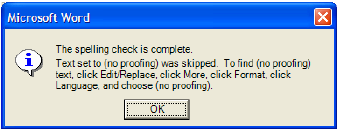
The spell-check example gives corrective instructions in a dialog that disappears when dismissed. The user must then remember the procedure while finding the necessary controls. A direct action, persistent instructions or contextual help can reduce that burden. Help is more useful when it is tied to the current condition than when it merely opens a general manual.
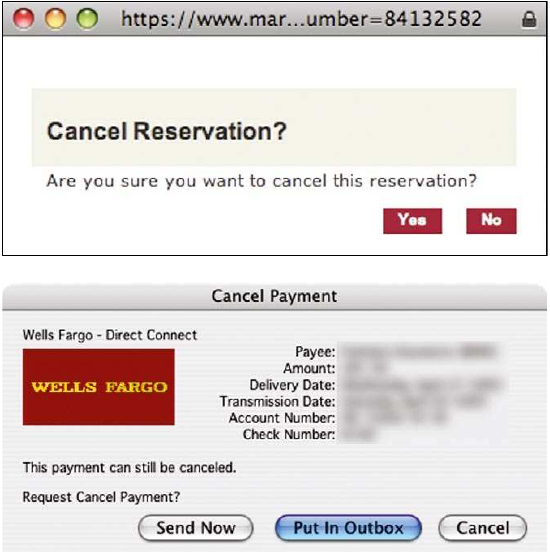
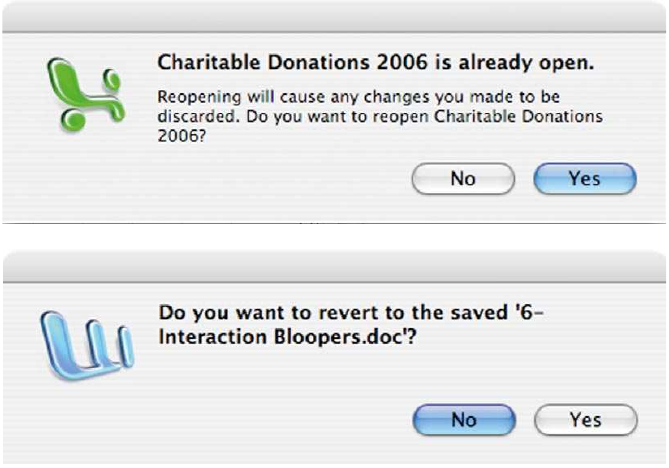
A warning about an already-open document
Opening a document that is already open can create a conflict between a stored version and unsaved changes. A useful warning names the state and makes the consequences of the available actions understandable. A vague question can leave the person uncertain whether they are reopening, replacing or discarding work.
Compare the warning alternatives in the figure. Look for the object, the threatened work and the meaning of each action. The same analysis applies to synchronizing files, importing settings and restoring an earlier version. Recovery begins with a clear account of what currently exists and what the proposed action will change.
Pharmacy Master redesign
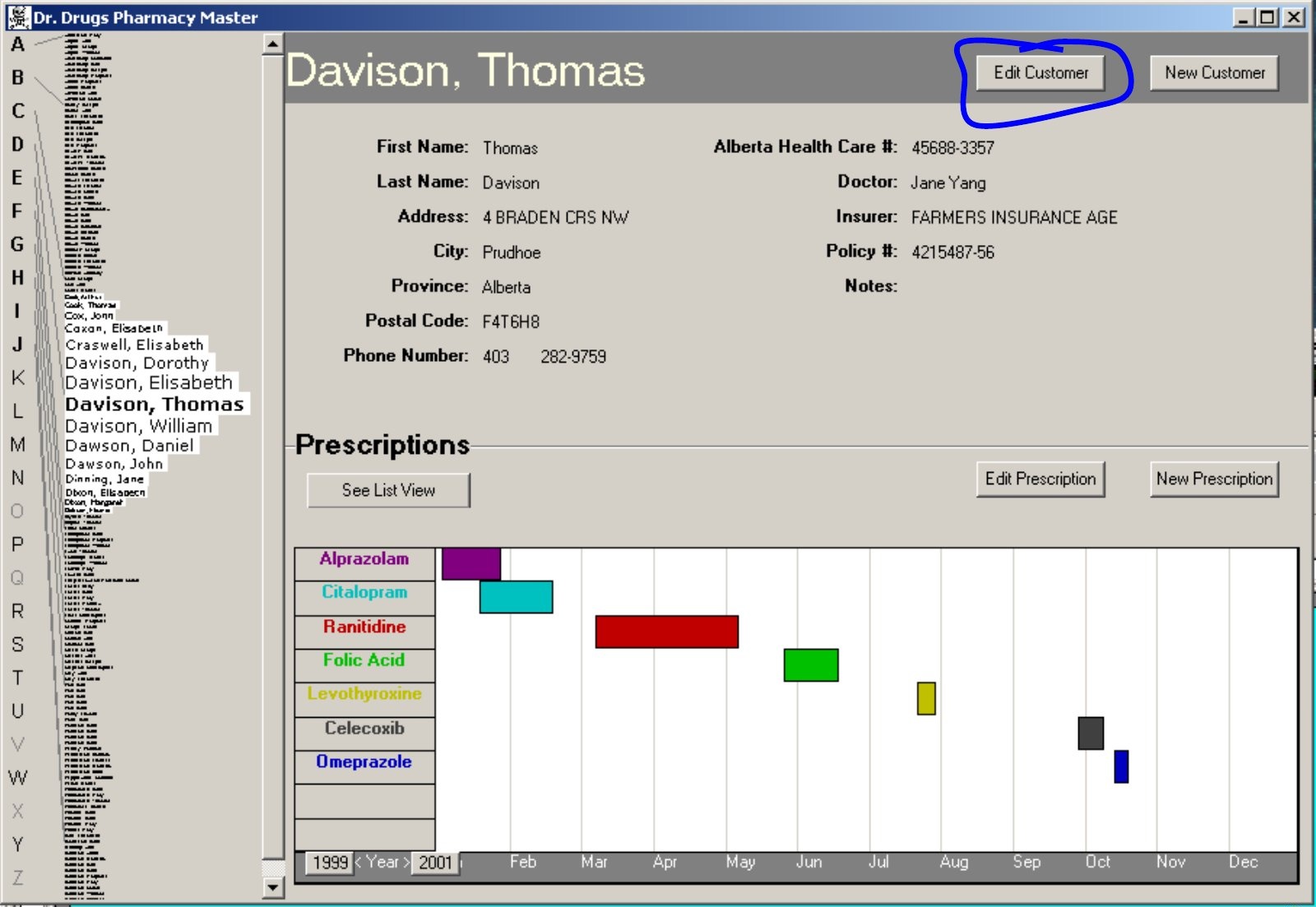
Patient context and prescription history
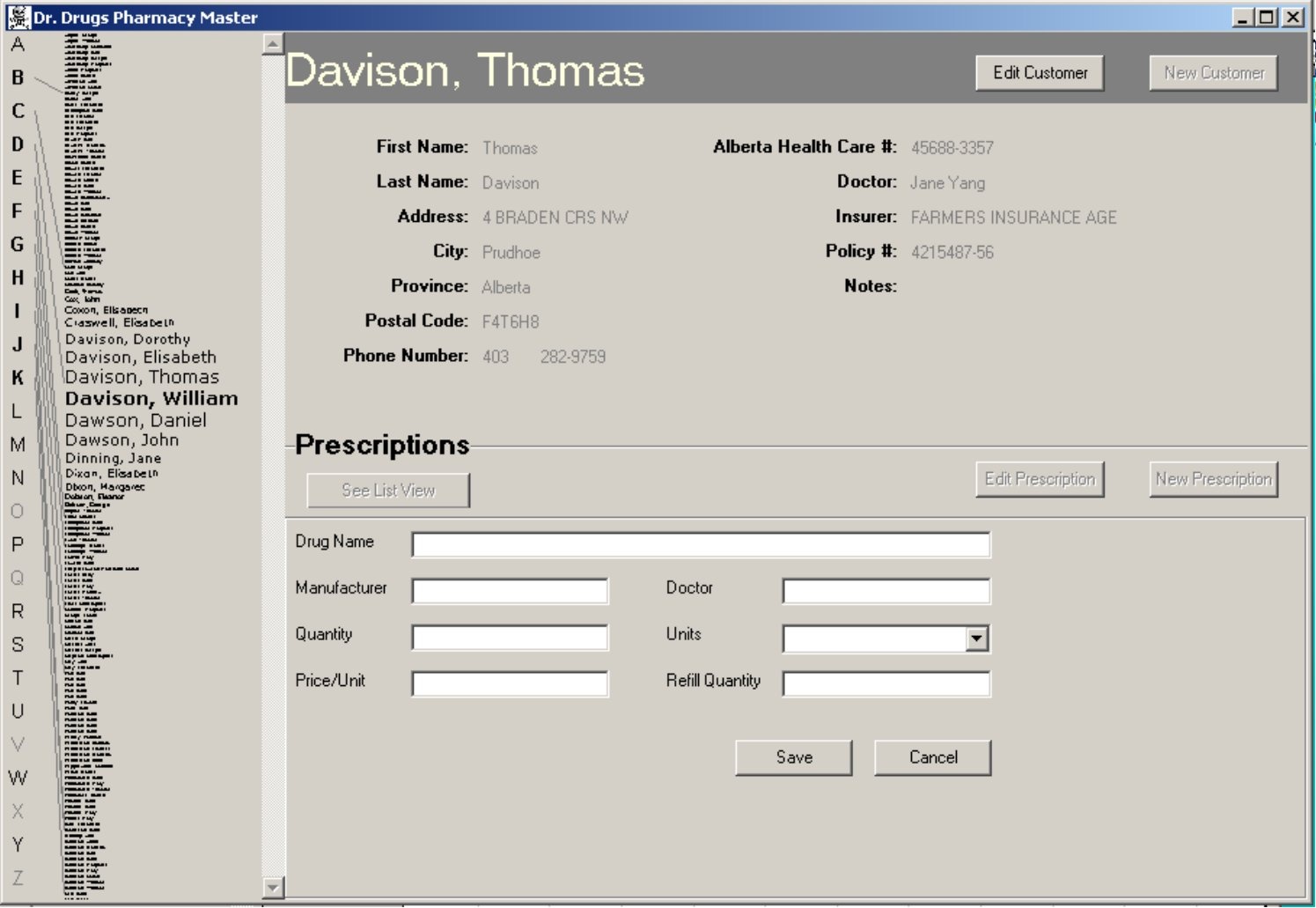
The Pharmacy Master overview brings the patient list, patient details and prescription timeline into one view. This supports inspection of related information without moving between separate windows. It also creates a design responsibility: the selected patient and the scope of each action must remain unmistakable.
The circled Edit Customer action begins a change to patient details. Before evaluating the next screen, identify what information should remain available during that task. The timeline is context; it is not an invitation to interpret clinical treatment. Our focus is the relationship among selected object, visible information and action state.
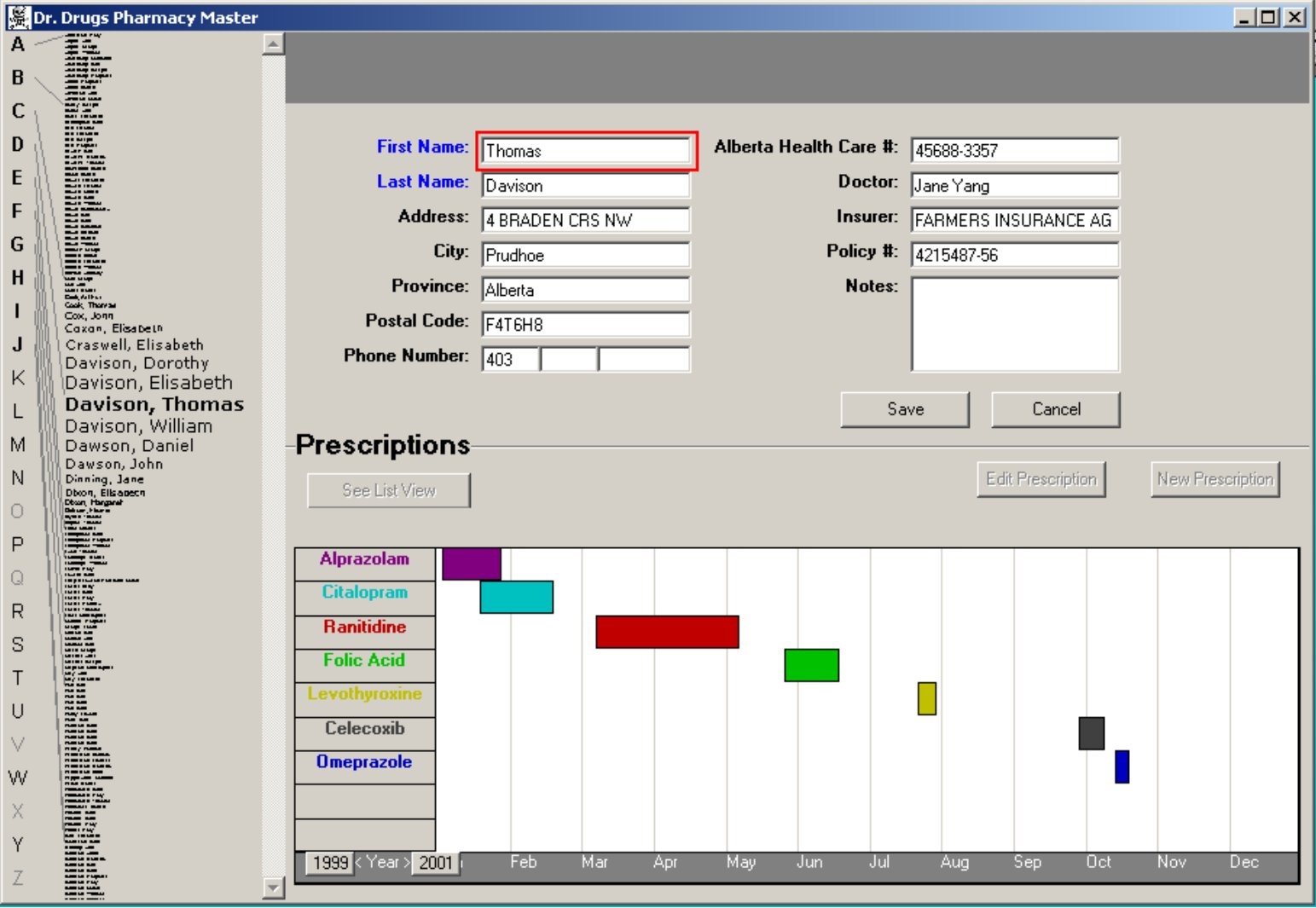
Editing patient details
The edit screen retains much of the spatial arrangement and exposes editable fields. Save and Cancel identify a boundary around the unfinished change. Disabling other operations can prevent conflicting work, but it also introduces a mode that the user must recognize and leave before doing something else.
Assess the tradeoff rather than assuming that every edit mode is bad. The mode can make commitment explicit and protect unfinished work. It can also interrupt a task that requires consulting or changing another record. Ask how users notice the mode, how they leave it and what happens to changes when they do.
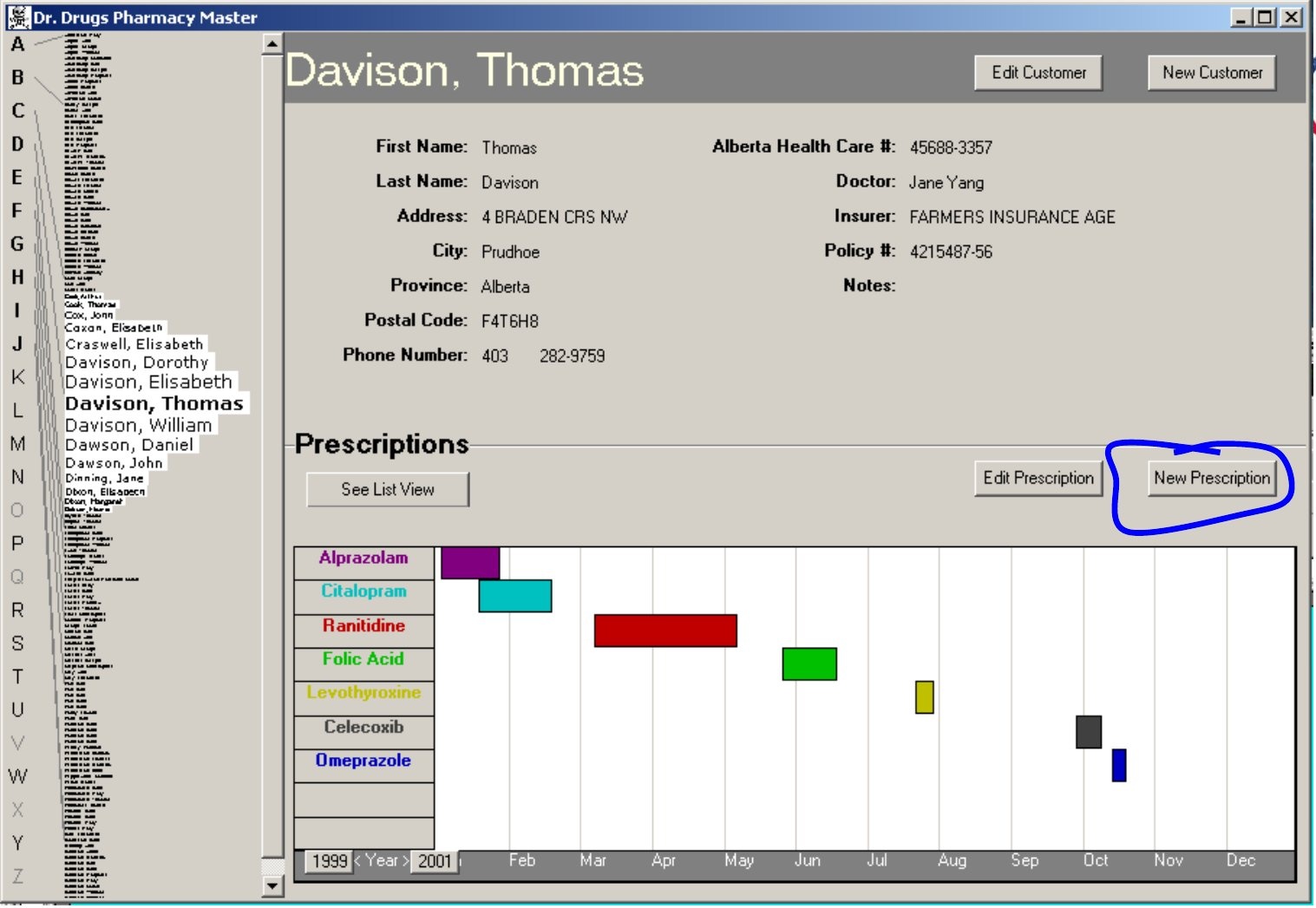
Starting a new prescription
The New Prescription action sits near the prescription information. Its placement helps associate the action with the relevant part of the patient record. The next state should make clear that the user is creating a new item for the selected patient rather than modifying an existing one.
A transition is part of the interface design. It changes which information is available, which actions are possible and what remains unfinished. Analyze these changes explicitly. A screen can look well organized in isolation while still producing confusion if the relationship to the previous state is unclear.
Entry displaces the timeline
The new-prescription screen keeps patient details above the entry area but displaces the timeline. This creates a specific tradeoff: the user gains space for the form while losing an overview that may be relevant during entry. The design should be judged against the information needed to perform the task.
If users routinely consult the history while entering a new item, moving it away can create repeated switching and memory demands. If it is rarely needed, dedicating space to it may compete with the form. Evidence about the task should decide which context remains visible and which can be accessed on demand.
A combined view and its tradeoffs
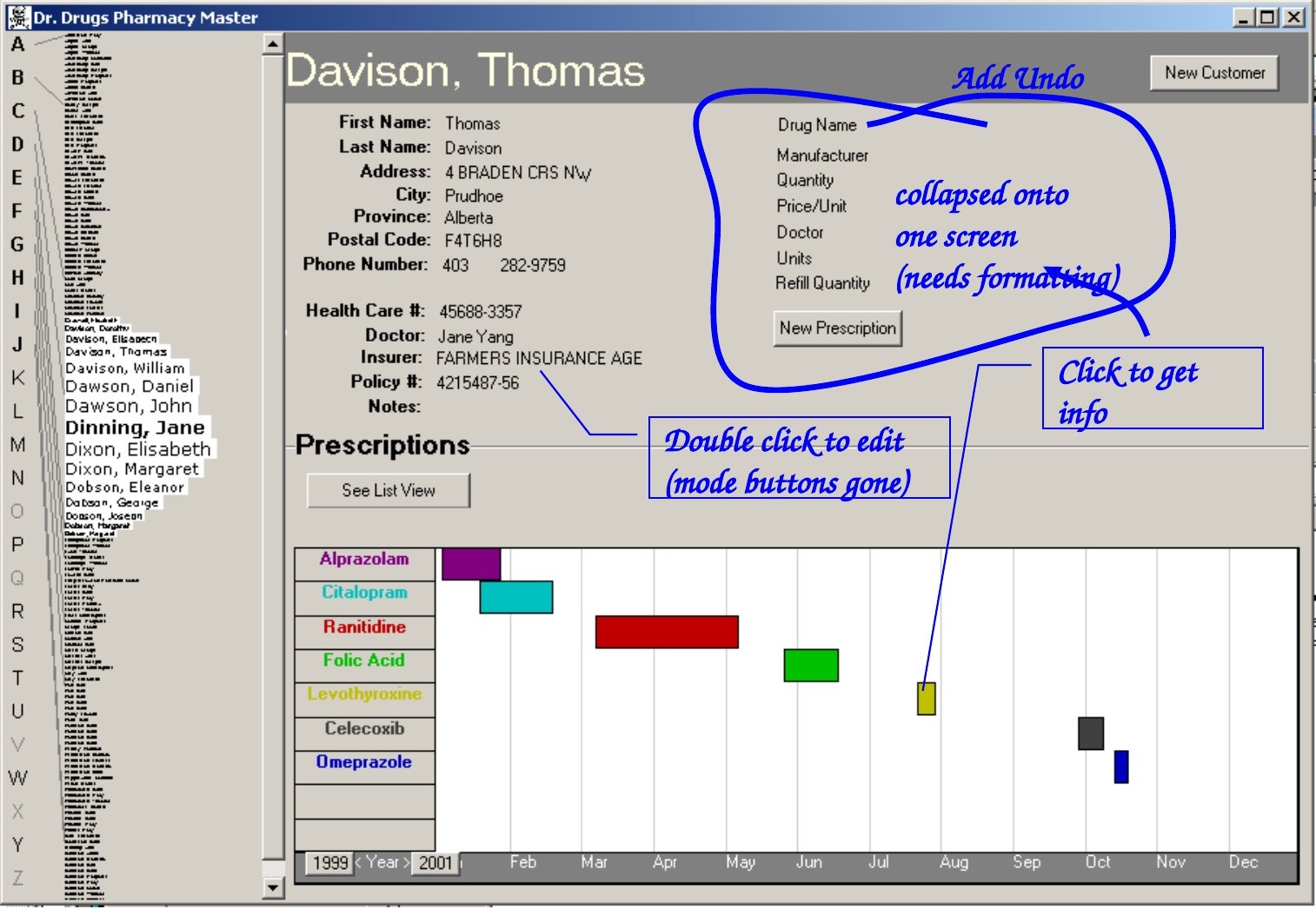
The proposed combined view restores concurrent access to the relevant information. Its annotations suggest clicking for information, double-clicking to edit and adding Undo. These choices address the cost of switching modes and losing context, but they create new questions about discovery and accidental editing.
A defensible critique identifies both gains and unresolved risks. Preserve patient identity, make editing and commitment understandable, and specify recovery. The proposal is not automatically correct because it contains fewer buttons. Its interaction must be examined with representative tasks, including interruptions, wrong selections and attempts to reverse a change.
What should the redesign preserve, and what still needs evaluation?
Preserve identity, necessary reference information and clear action scope. Evaluate how users discover editing, recognize unfinished changes and recover from wrong-object actions. Specify Save and Undo behavior before treating the combined view as complete.
Design decisions that can be justified
A design rationale connects an observed need to a concrete interface decision. State what the user is trying to do, identify the information or action problem and explain why the proposed alternative addresses it. Then identify its tradeoff and the evidence needed to judge it.
For example, preserving a result query supports comparison after opening a document, while keeping prescription history visible supports reference during entry. The examples differ, but the reasoning is comparable. The next step is evaluation: examine whether people can understand the choices, perform the intended task and recover when the interaction does not proceed as planned.
A useful rationale is specific enough to challenge. Visible filters predict that users can identify and relax the restriction responsible for an empty result. The comparison layout predicts that users can compare the same feature without scrolling between separate product summaries. A clear draft boundary predicts that users can say which city remains after Cancel. These are different predictions, each tied to a concrete design choice and a task that can be examined in the next lecture.
| Observed need | Design decision | Question for evaluation |
|---|---|---|
| Revise an empty search | Keep query and filters visible | Can users widen one constraint? |
| Compare products on a phone | Retain paired attributes | Can users compare without backtracking? |
| Abandon an unfinished edit | Separate draft from saved data | Can users predict what Cancel retains? |